![Logo (Black Text)-1.svg]](https://support.haystackteam.com/hubfs/Logo%20(Black%20Text)-1.svg)
The Haystack MCP creation tools let your AI assistant write for your intranet. Turn meeting notes into an announcement, draft a welcome post for new hires, or build a private reference page, then review it in Haystack before anyone else sees it.
💡 New to this? Start with drafts. Ask your assistant to save posts as a draft. Nothing goes live until you review and publish it in Haystack, so it's a low-risk way to try the creation tools for the first time.
📌 MCP integrations are an add-on service that are licensed separately from the core intranet platform. If you're eager to use an MCP integration, please reach out to your Customer Success Manager (CSM) or support@haystackteam.com for more details.
Table of Contents:
- Prerequisites & Permissions
- What the Creation Tools Can Do
- How It Works
- Important Things to Know
- Prompt Examples
- Best Practices
- Need More Help?
Prerequisites & Permissions
- MCP add-on: Your workspace is licensed for MCP integrations, with content creation turned on.
- Connected AI tool: Haystack is connected to your AI tool. See Haystack MCP Integrations Overview for setup guides.
- Posting permissions: To create posts, you need permission to post in at least one group in Haystack.
- Write tools allowed: Your admin or AI tool settings haven't blocked the Haystack write tools. See Troubleshooting MCP Connectors if you don't see them.
What the Creation Tools Can Do
|
Tool |
What it does |
|---|---|
|
List postable groups |
Shows the groups you can post in. It lists groups you belong to first, and can check any other group by name. |
|
Create post |
Creates a post in a group, either as a draft or published. |
|
Create private page |
Creates a knowledge page that only you can see, like a personal draft. |
How It Works
- You ask. For example: "Draft a welcome post for our new hires and save it as a draft in the People team group."
- Your assistant checks where you can post. It looks up your postable groups and confirms the right one.
- You review a preview. Before anything is created, your assistant shows you the title, subtitle, body, group, and whether it will be a draft or published.
(🖼️ The image below is a friendly mockup, not screenshots of a specific tool. Every AI assistant has its own look, but Haystack works the same way behind the scenes.)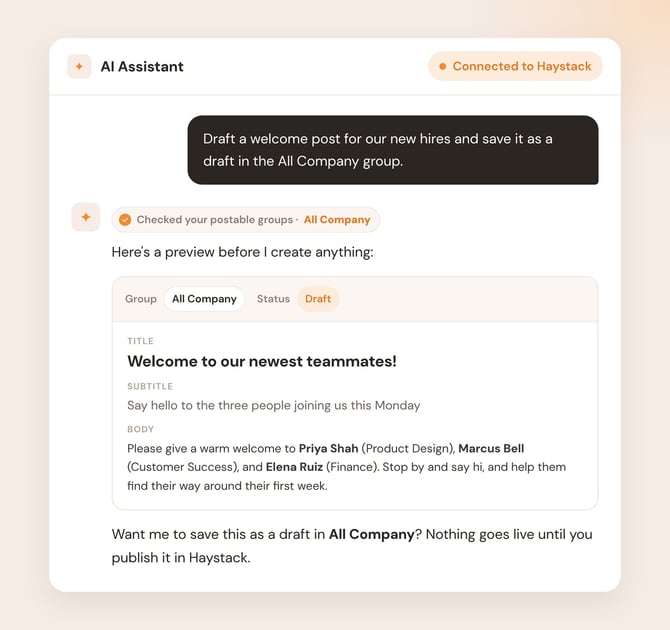
- It creates the post or page. You'll get a link to open it in Haystack.
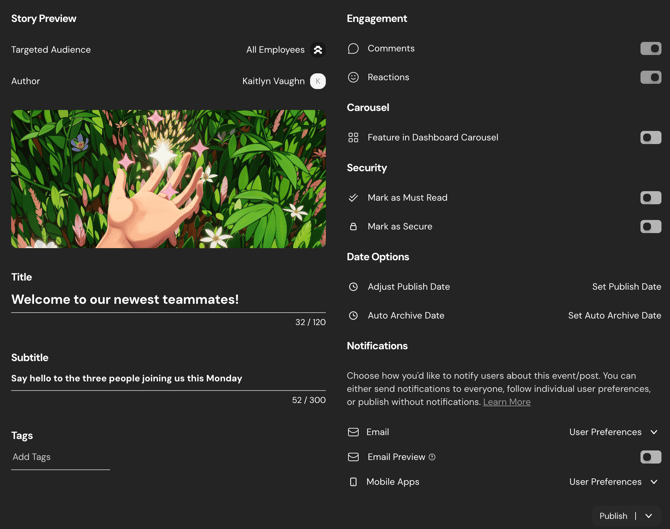
- You finish in Haystack. Review the draft, adjust any settings, and publish when it's ready.
Important Things to Know
- Drafts are published in Haystack, not from your AI tool. Once a post is saved as a draft, publish it from Haystack.
- Publishing sends notifications. A published post notifies the group using its default notification settings, including email, mobile, Slack, or Microsoft Teams channels if your workspace uses them. Notification options can't be changed from your AI tool.
- Post settings use your workspace defaults. From your AI tool you can't change the author, turn off comments or reactions, turn on the feedback tool, add a post to the carousel, or mark it as must-read. Save it as a draft, then adjust those settings in Haystack before publishing.
- Pages are private. Pages created from your AI tool are private knowledge pages owned by you. To share one, convert it to a shared page in Haystack. See Creating and Managing Pages.
- Permissions are always respected. You can only post in groups where you already have permission to post in Haystack.
- Formatting: Posts and pages support headings, bold and italic text, bulleted, numbered and task lists, links, images, quotes, and tables. Haystack posts use two heading sizes, so smaller headings are adjusted to fit.
Prompt Examples
- "Draft a welcome post for our three new hires starting Monday and save it as a draft in the People team group so I can review it."
- "Which Haystack groups can I post in? Then help me pick the best one for a company-wide benefits reminder."
- "Turn these meeting notes into a short, friendly announcement post and save it as a draft in the All Company group." (paste your notes below)
- "Create a private knowledge page with a checklist for running our annual engagement survey."
- "Search Haystack for our open enrollment details, then write a draft post reminding everyone of the deadline with a link-ready summary."
- "Write a draft post celebrating our Q3 wins for the Marketing group. Keep it upbeat and under 200 words."
- "Create a private knowledge page that summarizes everything on Haystack about our hybrid work policy, so I have a single reference while I update it."
- "Draft an event recap post for last week's town hall using these highlights, and save it as a draft for my review." (paste your highlights)
- "Find our existing FAQ about the new HRIS system, then create a private knowledge page with an updated version that answers the five most common questions I'm getting." (list the questions)
- "Write a draft post for the Shared Services group announcing new office hours for the help desk. Make it short, clear, and friendly."
Best Practices
- Name the group: "Post this in the Marketing group" is faster than letting your assistant guess.
- Combine search and write: Ask your assistant to search Haystack first, then write from what it finds. Your new content stays consistent with what's already published.
- Give it your voice: Share a past post as an example, or describe your tone ("warm, short, no jargon").
- Read before you publish: Treat AI drafts like any first draft. Check facts, names, dates, and links.
Coming Soon!
- Events: Create Haystack events right from your AI tool.
Have a workflow you'd love to see? Let us know. We're building the next tools based on what you tell us.
Need More Help?
- Chat with us: Available via the support bubble on this page. Our AI support agent, Luna, will do her best to answer your questions. Anything she's unable to answer will get routed to us humans.
- Email us: support@haystackteam.com
- Got Feedback? What would make these tools more useful for your team? Your feedback shapes the future of Haystack's MCP connectors. Share it with your CSM or at support@haystackteam.com.