![Logo (Black Text)-1.svg]](https://support.haystackteam.com/hubfs/Logo%20(Black%20Text)-1.svg)
📌 Heads-up! If your team is using an Okta, Azure, or OneLogin SCIM integration, you can sit this one out—these integrations handle your user data automatically! For assistance, reach out to your Haystack contact or support@haystackteam.com.
Step 1: Your Pre-Launch Checklist
If you're in the middle of setting up your workspace, this first step is super important! By default, Haystack sends email notifications to new users, which is great for a live workspace, but not so much before launch day. To avoid any surprise emails, let's turn off notifications first.
-
Head to your Admin Console and navigate to the Security Settings page.
-
Toggle off the Email and Mobile Notifications button.

Once it's off, no notifications about new content, user accounts, or anything else will be sent. This gives you a safe space to get everything set up perfectly before you're ready to launch. Be sure to leave this toggle OFF until launch day!
If you have any questions about this, we're happy to walk you through it! Just reach out to your Haystack contact or support@haystackteam.com.
Step 2: Completing Your User .CSV File
This is the most critical part!
-
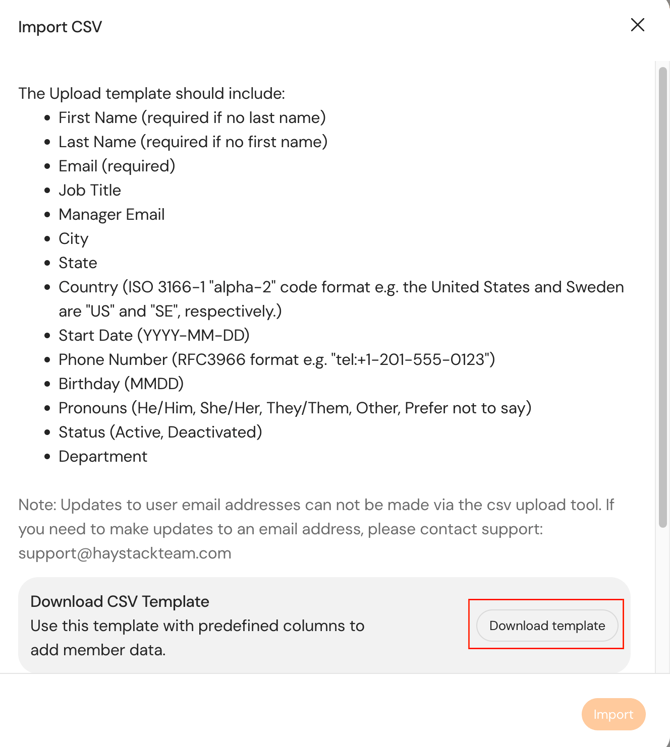
First, you’ll need our user .csv template. You can find the .csv file template by going to:
- Admin Console
- Manage People
- Click "Import CSV" at the top (see image below).

- Scroll down until it says "Download CSV Template" (see image below).
-
Complete the template with your employee data.
-
Be sure to leave the headers exactly as they are.
-
Pay close attention to the formatting notes in the headers for fields like country, start date, phone number, birthday, and pronoun. Following these exactly will ensure your data uploads without a hitch!
Step 3: Uploading Your Data
Once your file is complete, you're ready to upload it to your workspace!
-
Go to your Admin Console and navigate to the Manage People page.
-
Click the Import CSV button.
-
Scroll to the bottom of the pop-up and click Select File to upload your completed .csv file.
Haystack will immediately process the file and show you a Parse Check. This is your chance to review all the changes and fix any issues before the data is imported. If you see any errors, just go back to your file, make the necessary changes, and try the upload again.
When you're ready, click Import and watch the magic happen!
Making Employee Updates
Need to update existing employee information (like a new job title or manager)? The process is exactly the same! Just update your .csv file and follow the steps above. Just make sure the employee email addresses in your file match the ones in Haystack.
You've got this! Go populate that beautiful workspace!
Keywords: user data, CSV upload, import, profiles, directory, onboarding, manage people, admin, pre-launch, employee updates, adding employees, manual add