![Logo (Black Text)-1.svg]](https://support.haystackteam.com/hubfs/Logo%20(Black%20Text)-1.svg)
Entra's SCIM (System for Cross-domain Identity Management) integration with Haystack automates the lifecycle of user management, ensuring that your intranet directory remains accurate and up to date in real-time. By linking Entra and Haystack, you can:
- Automate User Provisioning: Automatically create Haystack accounts for new hires and deactivate accounts for departing employees directly from Okta.
- Synchronize Profile Data: Seamlessly push employee attributes—such as job titles, manager relationships, locations, and birthdays—from Okta to populate Haystack profiles.
- Maintain Data Integrity: Ensure that changes made in your primary identity provider (Okta) flow through to Haystack, maintaining a single source of truth for your organizational structure.
Prerequisites & Permissions
Before beginning, ensure you have:
- Haystack Admin: You must have access to the Haystack Admin Console to generate authentication tokens.
- Entra Admin: You need permissions to create and configure Enterprise Applications within the Microsoft Entra ID portal.
Critical Pre-Integration Step: Check Notifications
If your team is currently in implementation, it is extremely important to ensure that your workspace notification settings are turned OFF before you start provisioning users. Content notifications are sent to all users (even those who haven't signed in yet), and you don't want to launch prematurely!
- Visit the Security Settings page in your Admin Console.
- Toggle Email and Mobile Notifications OFF.
🆘 If you'd like help with this step, please reach out to your Haystack contact or support@haystackteam.com!
Step-by-Step Configuration Guide
Phase 1: Enable SCIM in Haystack
- Navigate to your Haystack Admin Console.
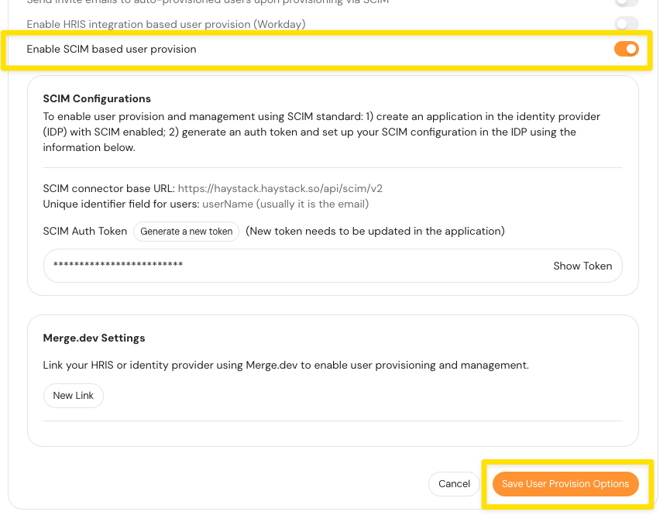
- Go to User Provisioning and select Enable SCIM.
- Click Generate a new token.
- Copy and save this token—we'll need it in a few steps.
- Click Save User Provision Options to save your work and activate the token.
Phase 2: Create the Entra Enterprise Application
- In the Microsoft Entra portal, navigate to Enterprise Applications > New Application.
- Select +Create your own application in the header.
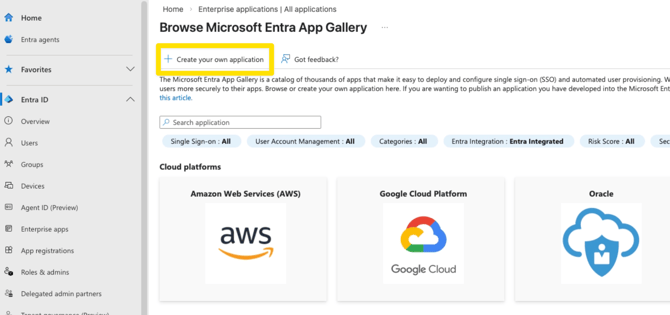
- Give your app a name (e.g., "Haystack SCIM Provisioning") and leave the default "non-gallery" option selected, then click Create. This may take a moment to create the app.
Phase 3: Configure Provisioning
- In your new Entra app, go to the Provisioning tab in the left hand menu and click Connect your application under the “Getting Started with Provisioning” header. (If you don’t see this option, you can also select +New Configuration in the header options, which will take you through the same workflow).
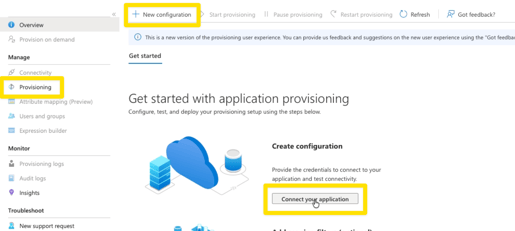
- Next, on the New provisioning configuration page, populate the following fields using the details from the User Provision and Login tab of your Haystack Admin Console.
- Select authentication method: Leave set to the default, Bearer authentication
- Tenant URL: Paste your Haystack SCIM URL.
- Secret Token: Paste the token you generated in Haystack.
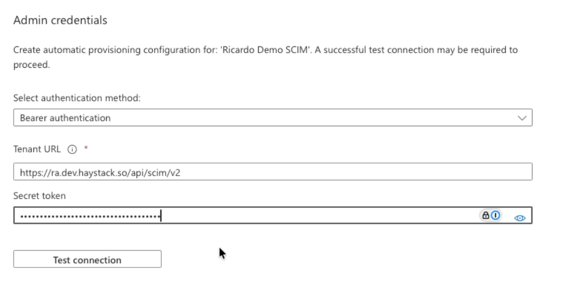
- Click Test Connection to ensure Entra can communicate with Haystack. The connection test will be confirmed with a banner message.
- Lastly, click Save.
Phase 4: Configure Attribute Mappings
📣 Please read this section very carefully! The mapping names are highly important. We suggest reading these full directions once before setting up your configuration.
To ensure Haystack receives the correct profile data, you must align the Entra profile attributes with Haystack’s requirements.
Configure Object IDs
- In your Entra app, go to the Attribute mapping tab in the left hand menu.
- Click Provision Microsoft Entra ID Users
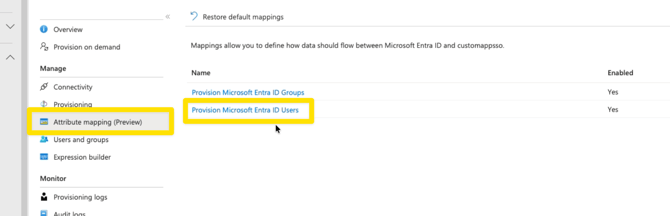
- On the Attribute Mapping page, leave the Name, Enabled, Source Object, Source Object Scope, Target Object and Target Object Actions fields as-is. Do not make changes to these fields.
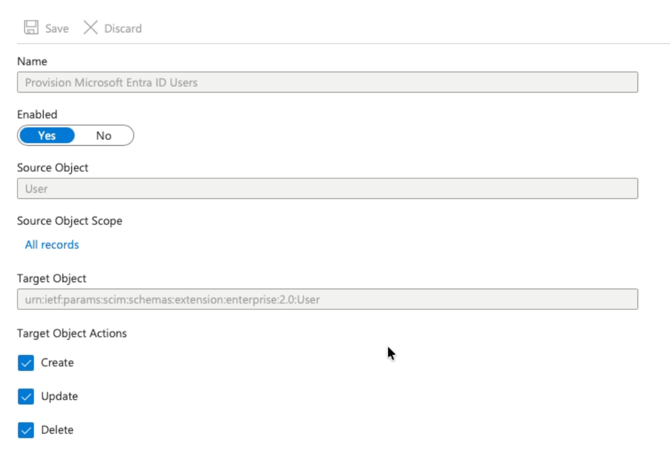
First, we’ll edit the key required mapping for your unique user IDs:
- Locate the externalID field and select Edit. Edit this field to map objectId (Source attribute) to externalId (Target attribute). This is the most vital mapping for unique identification.
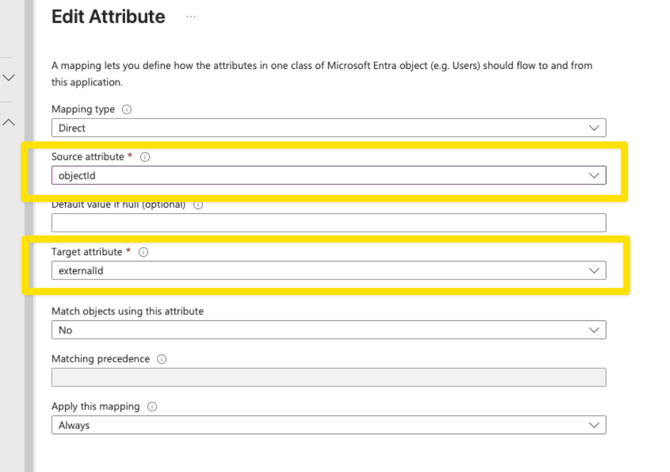
- Leave all other fields as-is.
- Click the Okay button to save this mapping.
- Then click Save at the top of the Attribute Mapping page to save your work.
Add and Edit Custom Attributes
Next you’ll add custom Haystack attributes that populate your users’ profiles. To do this, you’ll need to manually add attributes to the target list before they can be mapped:
- At the bottom of your list of mappings, tick the Show advanced options box and click Edit attribute list for CustomApp.
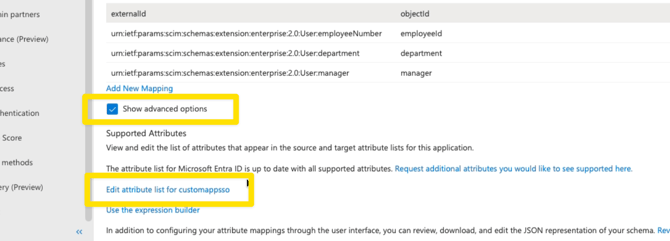
- First, find the one attribute listed as a Reference (instead of a String) and delete this attribute using the trash can button to the right.

- Click Save at the top of the page to save your work.
- Then, Scroll to the bottom of the Attribute list and add the following new attributes. Add the name only, leave String selected and all other boxes unticked.
- urn:ietf:params:scim:schemas:extension:haystack:1.0:User:managerExternalId
- urn:ietf:params:scim:schemas:extension:haystack:1.0:User:locality
- urn:ietf:params:scim:schemas:extension:haystack:1.0:User:region
- urn:ietf:params:scim:schemas:extension:haystack:1.0:User:countryCode
- urn:ietf:params:scim:schemas:extension:haystack:1.0:User:joinDate

- Scroll to the top of the mappings list and click Save.
Add Custom Attributes to Your Mappings
First, we’ll delete an attribute mapping that we don’t need (that can cause some confusion):
- On the Attribute Mappings list, find the default mapping for manager, which is listed as manager (Source) to urn:iet:params:scim:schemas:extension:enterprise:2.0:manager (Target).
- Click the button to Delete this field. We’ll set up a custom attribute for the manager in just a moment.

- Click Save to save your work.
- Refresh your page to confirm this mapping has been deleted.
Next, we’ll add your new custom attribute mappings. We’ll start with the manager field mapping:
- Click Add New Mapping at the bottom of your mappings list.
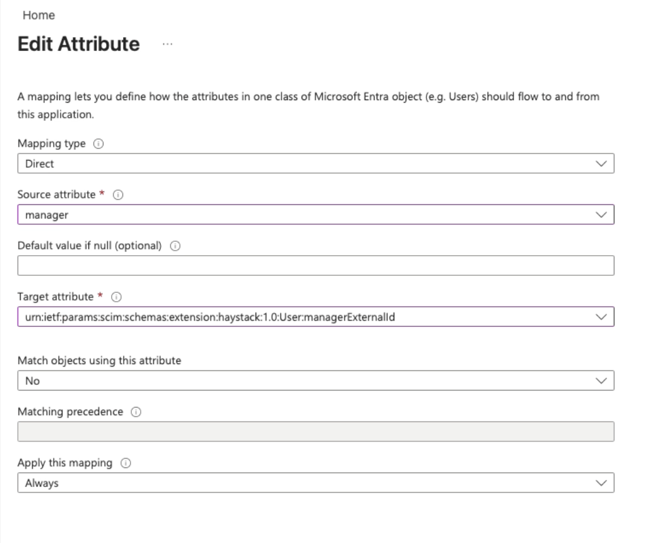
- On the Edit Attribute page, configure the following fields:
- Source Attribute: manager
- Target Attribute: urn:ietf:params:scim:schemas:extension:haystack:1.0:User:managerExternalId
- Leave all other fields as-is!
- Click Ok to save your attribute.
- Repeat this process for your other custom attributes you’d like to to use, each time using the Add New Mapping button like we did for the manager field above and the following pairs. These mappings are optional so you may skip them if you’d like.
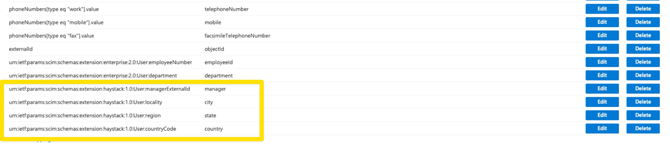
Source Target Attribute city urn:ietf:params:scim:schemas:extension:haystack:1.0:User:locality state urn:ietf:params:scim:schemas:extension:haystack:1.0:User:region country urn:ietf:params:scim:schemas:extension:haystack:1.0:User:countryCode joinDate urn:ietf:params:scim:schemas:extension:haystack:1.0:User:joinDate Click Save at the top of the mappings list to save your work. Your resulting custom mapping should look like this—displaying all the mapping you’ve configured.
Phase 5: Assign Users and Start Provisioning
- Navigate to Users and groups in your Entra app and assign the individuals or groups you wish to sync to Haystack.
- Return to the Provisioning tab and click Start provisioning. Once started, Entra will begin provisioning these users to Haystack automatically. This can take some time depending on your user volume and Entra provisioning frequency.
- To verify immediately, you can use the Provision on demand feature for a single user to check that their profile and manager details flow through correctly.
Best Practices
- Verify Reporting Lines: Check your Haystack Org Chart after the first sync to ensure manager mappings are correct.
- External ID is Permanent: Always use objectId for the externalId mapping to prevent duplicate accounts if a user's email changes.
- Manager Mapping: Remember that Haystack requires the managerExternalId mapping specifically to build the reporting hierarchy.
- Public Photo URLs: For profile photos to sync correctly, they must be hosted at a publicly accessible URL.
- Date Formats: Ensure your Entra date attributes follow a supported format (e.g., YYYY-MM-DD) for Start Dates and Birthdays.
- Test Small: Assign a small test group before syncing your entire organization to validate that all custom fields (like department or location) are appearing as expected.
Need More Help?
If you encounter errors during your connection test or need help mapping specific custom fields:
- Chat with us: Available via the support bubble on this page.
- Email us: Reach out to support@haystackteam.com.
Keywords: Entra, SCIM, User Provisioning, Microsoft Entra ID, Attribute Mapping, Org Chart, Automation, Integration Guide, externalId.