![Logo (Black Text)-1.svg]](https://support.haystackteam.com/hubfs/Logo%20(Black%20Text)-1.svg)
Providing a seamless entry point to your company intranet is essential for high adoption rates. By integrating Okta with Haystack, you eliminate password fatigue and allow your employees to access their workspace using the same secure credentials they use for the rest of your tech stack.
Permissions & Requirements
To complete this setup, you will need:
-
Okta: Administrator privileges within your company’s Okta Admin Console.
-
Haystack: Admin access to the Haystack Admin Console.
-
Technical Support: We highly recommend involving your IT or Security team to ensure your identity provider settings align with company policy.
Step 1: Create a New App Integration in Okta
-
In the Okta Admin Console, visit the Applications page in the left hand navigation.
-
Then, click the Create App Integration button at the top of the page.
-
Select SAML 2.0 and click Next
- Then, give your app a name, we like to use something identifiable like Haystack Intranet. Add a logo if you'd like.
- Tick the box to select whether or not you'd like your app icon to display to users. If you are still in implementation, many teams choose to hid their app icon until launch.
- Click Next
Step 2: Find the SSO SAML Setup Details in Haystack
-
In a separate browser tab, open your Haystack workspace
- Navigate to the Admin Console and select User Provision & Login in from the lefthand menu.
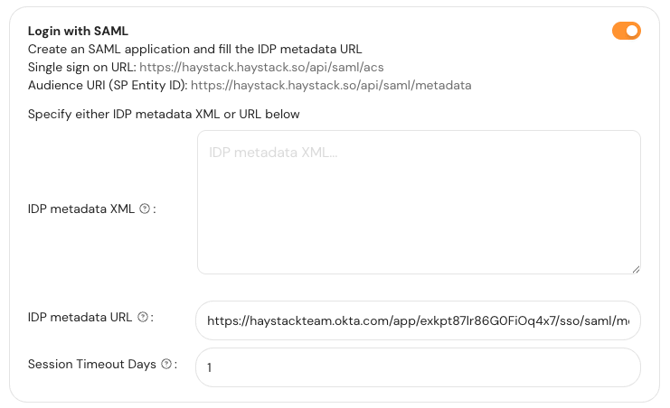
- Toggle ON Login with SAML
- Keep this browser tab open, we'll use it in the next steps!
Step 3: Configure Okta SAML Settings
- Return to your Okta app setup screens
- In the Single Sign-On URL field, paste the Single sign on URL listed in your Haystack Admin Console.
- In the Audience URI field, paste the Audience URI (SP Entity ID) URL listed in your Haystack Admin Console.
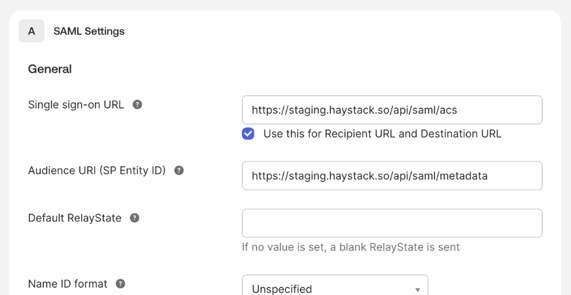
- Leave the rest of the settings as-is and click Next.
- On the Feedback screen, complete the asks from Okta if you'd like. Otherwise leave them blank and click Finish.
Step 3: Add the Okta Metadata URL to Haystack
Once the app is created, Okta will take you to the Sign On tab.
-
Find the Metadata URL in the SAML 2.0 section of the page and click Copy.
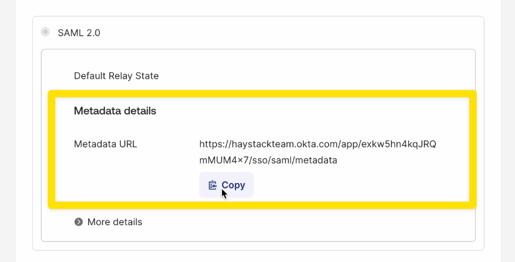
- Then, return to your Haystack Admin Console and past the copied URL into the IDP metadata URL
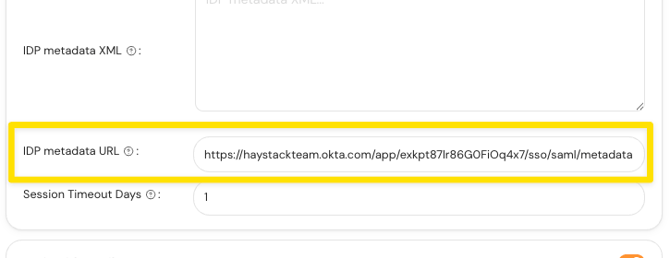
- Click the Save User Login Options button to save your work.
⚠️ Important: Ensure the Metadata XML field is left completely empty. Why? Providing both can cause configuration conflicts. Additionally, pasting XML manually can sometimes introduce "hidden characters" (like non-breaking spaces) that will cause the connection to fail.
Once complete, your Okta SSO is set up and your users will see a Sign in with OKTA button on your login page.
Best Practices
To ensure a smooth rollout and maintain a secure environment, keep these tips in mind:
-
Test with a Pilot Group: Assign the Haystack app to a small group of IT users in Okta first to verify the handshake works before assigning it to the entire "Everyone" group.
-
Use the Metadata URL over XML: Always prefer the Metadata URL (as described in Step 4). It allows for automatic certificate renewals, preventing your SSO from "breaking" when a security certificate expires.
-
Verify Subdomains: Double-check that your Haystack subdomain (e.g.,
companyname.haystackteam.com) matches exactly in the Okta Single Sign-On URL field. -
Audit "Hidden Characters": If you encounter an error, clear the Metadata fields in Haystack entirely and re-paste the URL to ensure no stray spaces were included.
Keywords
Okta, SAML, SSO, single sign-on, IT, admin, authentication, configuration, IDP Metadata, security, integration, identity provider.