![Logo (Black Text)-1.svg]](https://support.haystackteam.com/hubfs/Logo%20(Black%20Text)-1.svg)
While a single global Home Group works beautifully for many organizations, larger enterprise teams often need a more tailored approach. If your company operates across multiple geographic offices (like New York, Los Angeles, and Atlanta) or manages an umbrella of distinct brands, a one-size-fits-all landing page might not cut it.
Haystack allows you to set specific groups as a user's unique Home Page. When implemented, users in those groups bypass the generic dashboard view and land directly into an experience customized entirely to their specific office, region, or subsidiary brand.
💡 Not sure if you need this? Unless you explicitly want to create separate landing pages for different physical locations or sub-companies, you do not need to use this feature. A single global Home Group covers most organizations' needs perfectly!
Why this matters:
- Hyper-Relevant Content: Employees instantly see the localized news, office logistics, and events that impact their day-to-day work.
- Automated Data Routing: By pairing this feature with your HRIS sync, employees are automatically dropped into the correct workspace environment based on their official office location.
- Cleaner Digital Workspace: Reduces noise for employees by keeping region-specific chatter out of the global corporate feed.
Prerequisites & Permissions
- Permissions: You must have Workspace Admin privileges to access these settings.
- System Requirements: To make this process seamless, it is highly recommended that you have an active HRIS integration (e.g., Workday, Rippling, BambooHR) synced with Haystack to automatically manage location-based group memberships, especially if you are managing thousands of employees in your workspace.
How the System Prioritizes Multiple Home Groups 🧠
When you start assigning multiple groups as "Home Groups," it is incredibly important to understand how Haystack's system handles prioritization. A common question that comes up, especially for umbrella companies is: If an employee belongs to both a parent "All Company" group and a specific resort group (like Deer Valley), which one do they see first upon login?
Here is exactly how our codebase decides where to route a user:
⚠️ The Single Home Group Rule: The system will only automatically redirect an employee to a custom Home Group page if they belong to EXACTLY ONE group marked as a Home Group.
When a user logs in, the platform runs a quick check on their profile:
- If exactly 1 Home Group is found: The user is automatically redirected to that specific group's page when they open the workspace.
- If 0 or 2+ Home Groups are found: No automatic redirect happens. Because the system refuses to guess or choose between multiple conflicting Home Groups, it avoids ambiguity by landing the user on the default workspace dashboard page.
The Recommendation for Multi-Location Setups
For most standard workspaces, marking a single parent or "All Company" group as the Home Group works perfectly for their needs. However, if your specific goal is to ensure that employees always see their individual resort or local office page first, do not mark your parent/all-company group as a Home Group.
Instead, you should only mark the individual locations or sub-brands (e.g., London, NY, ATL, LA) as Home Groups.
You can mark as many separate groups as "Home Groups" as your organization requires. The system will then seamlessly assign that specific page as the default home for all users within that separate group every time they log in. The only critical piece to manage is ensuring that a single individual user is not added to multiple groups that you have marked as a "Home Group." If they belong to more than one, the system reverts them back to the default main dashboard.
How to ensure everyone still sees company-wide updates?
Because Haystack does not have a "cross-group post" functionality to blast a single update across multiple separate location groups simultaneously, you might wonder how to make sure everyone sees parent-company updates.
The strategy here is simple: Push the update directly to your "All Company" or "All Staff" group. Because every single user across all locations is automatically a member of this overarching group, publishing your initiative there ensures total workspace visibility without needing to manually copy it into individual resort or office groups.
Step-by-Step: Setting a Group as a User's Home Page
Before beginning, ensure you have already created the location-specific groups (e.g., "NY Office") within your workspace.
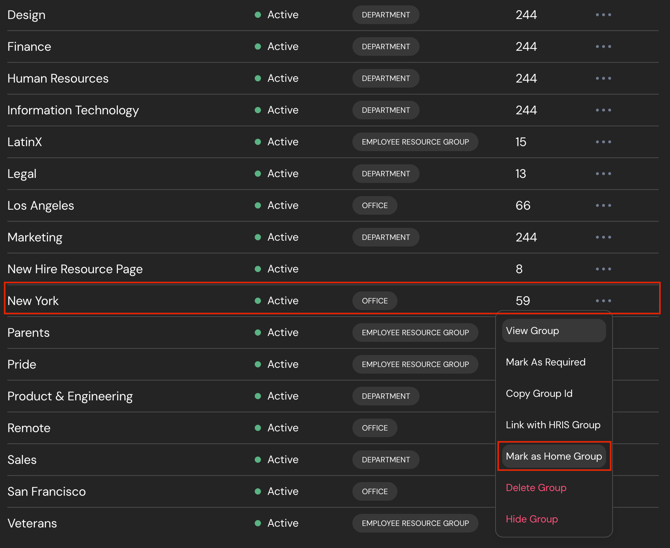
- Open the Admin Console from your left-hand navigation sidebar.
- Click on Manage Groups.
- Locate the specific regional or brand group you want to configure.
- Click the three vertical dots (more options icon) on the right-hand side of that group's row.
- Select "Set as Group Home Page" from the dropdown menu.
🏆 Best Practices
- Keep Home Groups Mutually Exclusive: Remember the "Single Home Group Rule." Ensure an individual user is never mapped into more than one group marked as a Home Group, or they will revert back to the default dashboard.
- Align with Your HRIS: Coordinate with your IT department to ensure your HRIS data accurately maps employees to their respective city, office, or brand attributes. This ensures automated group syncing works flawlessly without manual intervention.
- Assign Local Editors: Empower local office managers or regional internal comms leads as group moderators so they can keep these localized home pages vibrant, accurate, and up-to-date.
- Cross-Post Core Announcements: Train your corporate internal comms team to select all regional groups when publishing high-priority company updates so no location is left in the dark.
Need assistance mapping your HRIS fields to regional home pages or structuring your enterprise hierarchy?
- Chat with us: Click the Support Chat icon in the bottom right corner of your screen for real-time help. Our AI good-girl, Luna will fetch you the right information quickly! 🐶
- Create a ticket: Fill out our support form HERE and a team member will get back to you ASAP.
- Email us: Drop our team a line at support@haystackteam.com and we'll help you track it down!
Keywords: Location Home Page, Regional Dashboard, HRIS Sync, Group Home Page, Multi-location Intranet, Enterprise Workspace, Location Groups, Customized Landing Page, Workspace Admin, Target Communications