![Logo (Black Text)-1.svg]](https://support.haystackteam.com/hubfs/Logo%20(Black%20Text)-1.svg)
We all love giving our teammates control over their inbox, right? By default, your employees are the captains of their notification destiny—they choose if they want instant emails, daily recaps, or total peace and quiet.
But let's be honest, sometimes you have news that's so important it needs to cut through the noise. We're talking urgent, required, or must-read information. For those moments, you need a Broadcast Post.
Think of this as your internal corporate megaphone. It bypasses those personal notification settings to deliver the news instantly via email and/or mobile push.
Understanding Your Notification & Email Options
When publishing a post or event, you'll have the option to choose from three distinct notification modes:
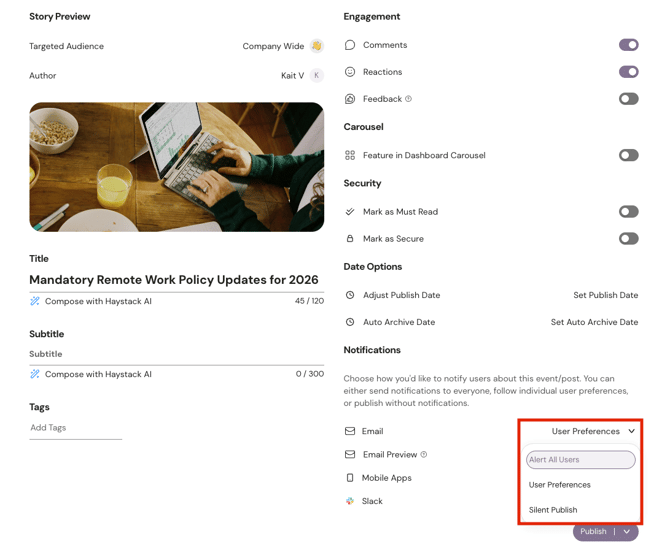
- Alert All Users (Forced Broadcast): The most critical setting. Immediately sends an instant email and mobile push notification directly to every targeted user's inbox, overriding individual preferences like daily or weekly digests.
🚨 A Friendly Word of Caution: With great power comes great responsibility. Please reserve FORCED BROADCASTS for only the most genuinely urgent and important news.
- User Preference (Default): Delivers updates based on each user's personal settings (e.g., instant alerts, batched daily digests, or weekly summaries).
- Silent Publish: Adds content to the Haystack feed or calendar without sending any email or push notifications.
How to Blast Your News (The Smart Way)
Sending a broadcast is simple, but it happens right before you hit 'Publish.'
-
Create Your Post: Draft your content as usual—add your title, body, and all that good stuff.
-
Toggle the Megaphone: When you get to the publishing settings screen, find the Broadcast Settings section. Toggle on the Forced Broadcast switch.
-
Choose Your Channels: Now, select exactly which notification channels you want to use (like email and/or mobile push).
-
Add VIP Features (Optional): This is a great time to make sure the news sticks!
-
Check the Mark as Must Read box to add a call-to-action so employees can confirm they saw the update.
-
Flag it as Secure Delivery if you need to add a watermark or prevent copying/pasting.
-
5. Hit Publish! Click the Publish button. Your post will go live instantly, and those forced notifications will zoom out to every audience member!
And that's the whole scoop on mastering the Haystack Broadcast Post! You've got the power to share your most important news instantly. Go forth and communicate brilliantly! 📣
Keywords: Haystack, broadcast, forced broadcast, notifications, urgent news, internal communications, tutorial, guide, publishing, must read, secure delivery, admin tools