![Logo (Black Text)-1.svg]](https://support.haystackteam.com/hubfs/Logo%20(Black%20Text)-1.svg)
Every company has its own language—from industry-specific terminology to internal project acronyms. The Haystack Glossary tool provides a single source of truth for these definitions, helping new hires onboard faster and ensuring clear communication across the entire organization. Terms in the glossary are automatically indexed in your workspace search and can even be @-mentioned directly within posts and pages.
Prerequisites & Permissions
-
Workspace Admins & Resource Admins: Have full permissions to create, edit, batch upload, and delete terms within the glossary.
-
All Users: Can view the glossary, search for terms, and @mention terms in their own content.
How to Build and Manage Your Glossary
1. Navigating to the Glossary
You can find the glossary in your header navigation under the Knowledge (or similar) tab.
-
Note: The exact location may vary depending on how your team has customized your navigation. If you can’t find it, simply add
/glossaryto the end of your workspace URL.
2. Adding Terms One-by-One
-
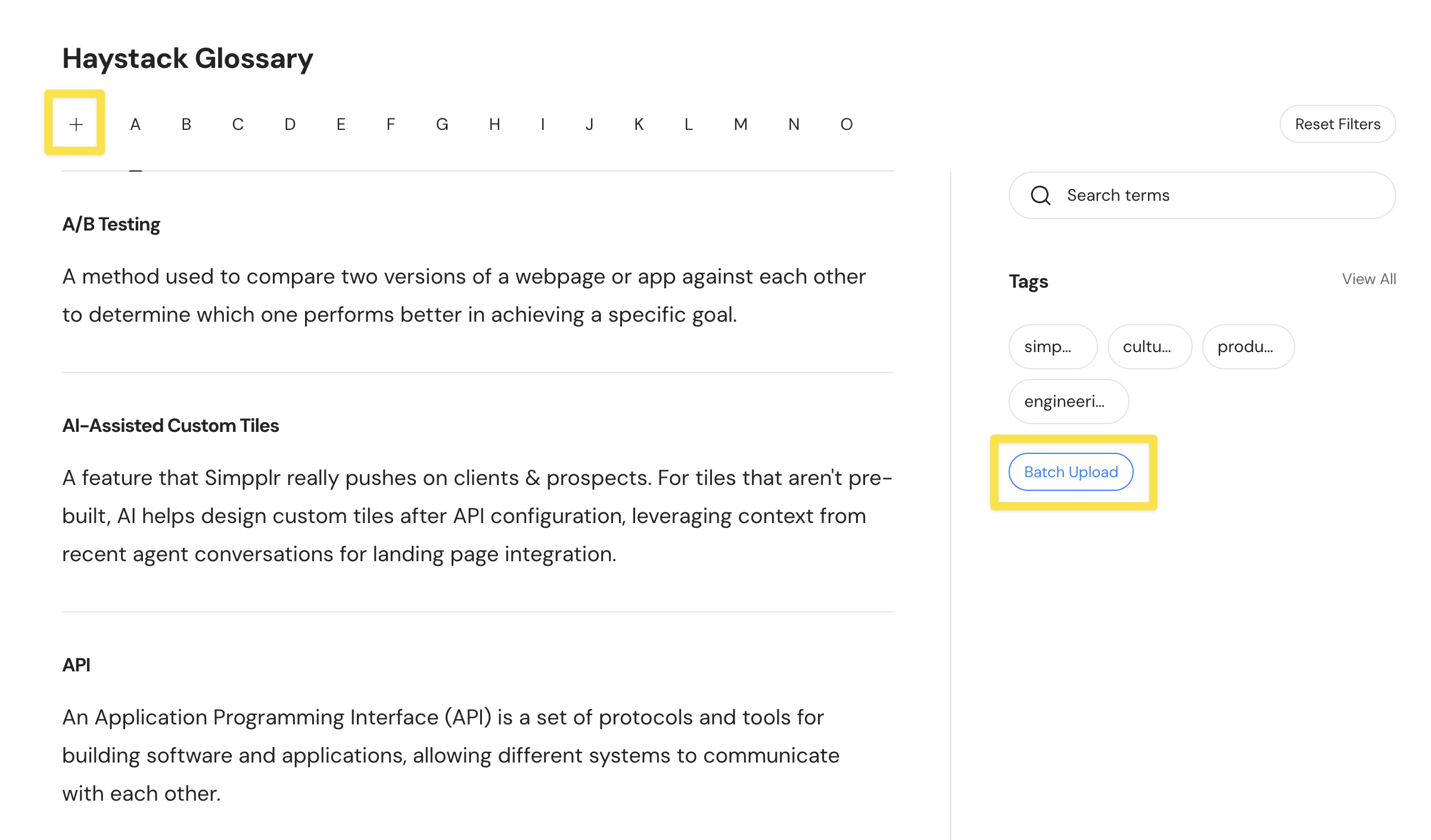
On the Glossary page, click the Plus (+) icon located in the top left under the "Haystack Glossary" header.
-
Define a Term: Enter the term or acronym (e.g., WFH).
-
Add a Definition: Provide a clear explanation (e.g., Work From Home).
-
Add Tags: Categorize your term (e.g., "Engineering," "DE&I," or "Product") to make it easier for users to filter the list.
-
Click Create.
3. Bulk Uploading Terms (The Fastest Way!)
If you are starting from scratch, we recommend using a CSV upload:
-
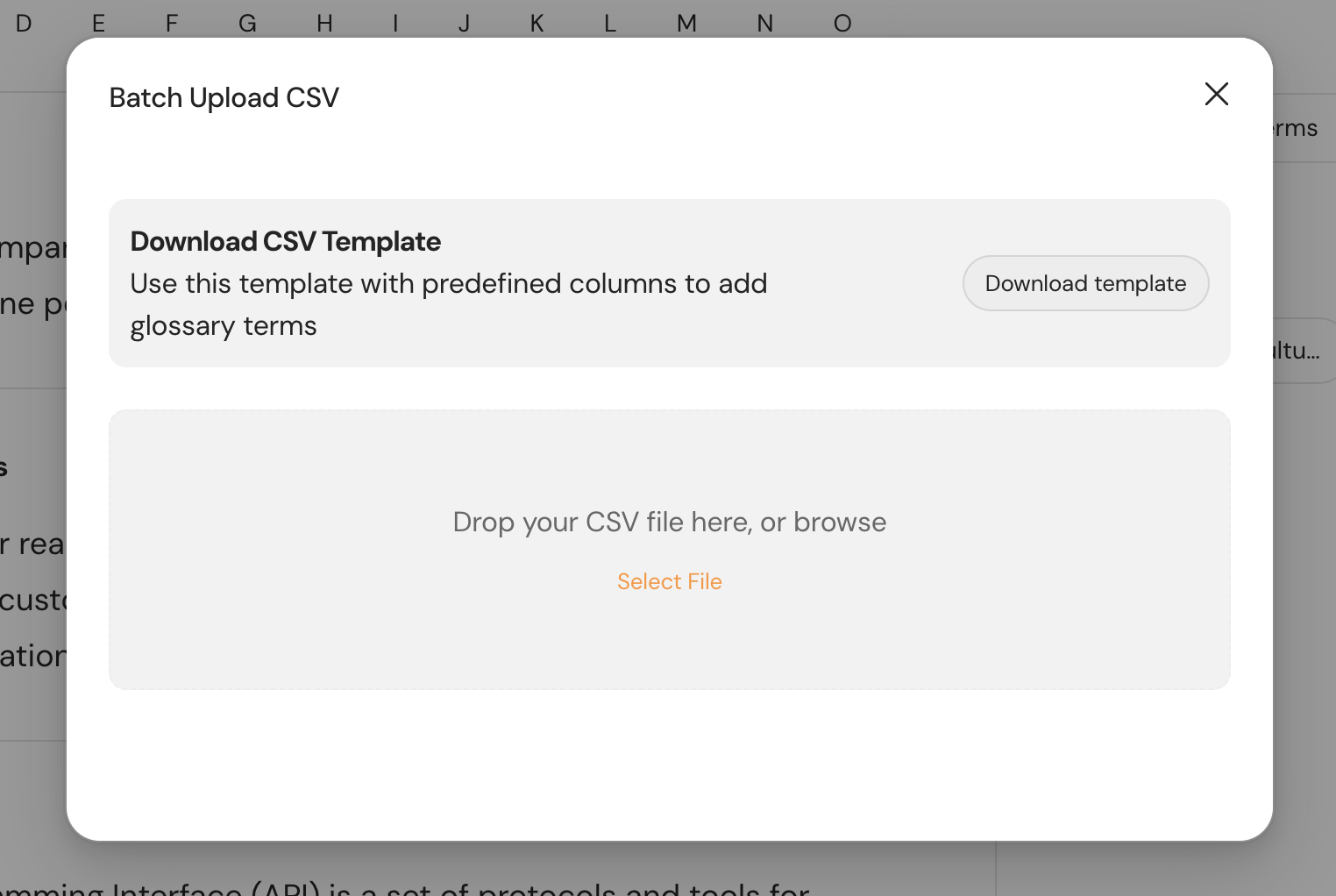
Click the Batch Upload button on the right side of the Glossary page.
-
Click Download Template to get a CSV file with the correct headers.
-
Fill out the CSV with your terms (pro tip: use an AI tool like Gemini or ChatGPT to help define common industry terms!).
-
Return to Haystack and upload the completed file and click Import.
4. Editing or Deleting Existing Terms
As your company evolves, you may need to update your definitions:
-
Navigate to the Glossary and find the term you wish to change.
-
Click the three-dot (...) menu next to the term.
-
Select Edit to change the definition or tags, or Delete to remove the term from the system entirely.
Best Practices
-
Crowdsource Definitions: Use a Haystack post or Slack message to ask employees: "What are the acronyms you wish you knew in your first week?"
-
Use Tags Judiciously: Tagging terms by department (e.g., Marketing vs. Legal) helps users filter through a large glossary quickly.
-
Keep it Human: Avoid overly clinical definitions; use the tone of your company culture to make the glossary more approachable.
-
Update Regularly: Assign a "Glossary Guardian" to review terms quarterly so that retired projects or outdated jargon don't clutter the search results.
Need More Help?
Need a hand with your batch upload or have a question about search indexing?
-
Chat with us: Click the support bubble on this page.
-
Email us: Drop us a line at support@haystackteam.com.
Keywords: Glossary, Company Jargon, Acronyms, Onboarding, Batch Upload, Knowledge Management, Internal Lingo, Search Indexing, Workspace Navigation.