![Logo (Black Text)-1.svg]](https://support.haystackteam.com/hubfs/Logo%20(Black%20Text)-1.svg)
Outdated policies and expired guides clutter search results. The Freshness Engine automates content governance by tracking page age and alerting owners when articles are due for review—keeping your intranet accurate with minimal effort. ✨
📍 Jump to a Section
- Why Use the Manage Pages Dashboard?
- Prerequisites & Permissions
- How to Access the Manage Pages Dashboard
- Understanding the Dashboard
- Filtering, Sorting, and Reviewing Stale Pages
- Best Practices for Managing Pages
Why Use the Manage Pages Dashboard?
- Centralized Content Auditing: View every knowledge page in your organization from a single, dedicated administrative interface.
- Identify Stale Documentation: Spot pages that haven't been updated recently so you can prompt owners to review or archive them.
- Visibility Into Page Structure: Easily check sub-page counts, parent-child page hierarchies, and assigned group locations.
- Track Ownership & Activity: Identify page creators and recent editors, including whether those accounts are currently active or inactive.
Prerequisites & Permissions
Access to the Manage Pages dashboard and administrative content audit tools depends on your assigned role:
- Resource Admins & Workspace Admins: Full access to view, sort, and manage the all-pages table within workspace settings.
- Standard Users, Page Owners, & Group Admins: Do not have access to the global Manage Pages tab. (Page owners can still manage individual page settings on pages they own).
🔒 Privacy Note: Private pages remain strictly private. They will never appear in the Manage Pages table or administrative freshness lists for non-permitted users.
Navigating the Manage Pages Dashboard
- Navigate to your main Haystack Dashboard.
- Select Admin Console by opening the drop down carrot to the right of your name from your administration panel.
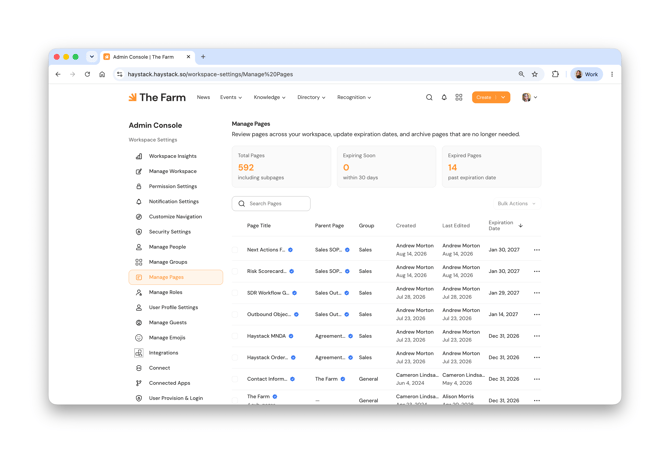
- Locate and click the new Manage Pages tab in the left side bar.
- The full-width Manage Pages table will load, displaying up to 30 pages by default with continuous infinite scrolling as you scroll down.
Understanding Table Columns & Indicators
| Column Header | Description & Display Items |
|---|---|
| Select | Checkbox options on the left hand side for bulk administrative actions. |
| Page Title | Clickable link to the page, sub-page count (Sub-page count: ##), and a ✅ Verified Badge indicates a page's status within it's settings. |
| Parent Page | Clickable link to the parent page (if applicable) along with its verified status badge. |
| Group | Clickable link to the assigned group location (Group Name). |
| Created | Sorts by date, creator name hyperlink (Creator Name), active/inactive user indicator, and creation date. |
| Last Edited | Sorts by date, last editor hyperlink (Editor Name), active/inactive user indicator, and last edit timestamp. |
| Expiry Date | Clickable sorting arrow (↑/↓) and scheduled expiration date (if set). |
| Actions | Three-dot menu (...) icon for quick page management actions. |
Filtering, Sorting, and Reviewing Stale Pages
By default, the table sorts pages by oldest expiry date to immediately highlight content that may be stale or due for review.
1a. Sorting Columns
- Click any header with a sort arrow (↑/↓)—such as Created, Last Edited, or Expiry Date—to reorder the list.
- Only one column can be sorted at a time.
- Keyboard navigation is fully supported for accessible sorting
1b. Sort by Group
- If you want to sort by a specific group, choose "Filter by Group" at the top and choose which group from the drop down option. You can only use this option to sort through one group at a time.
- From there, the analytics at the top will change based on the group selected.
2. Taking Action
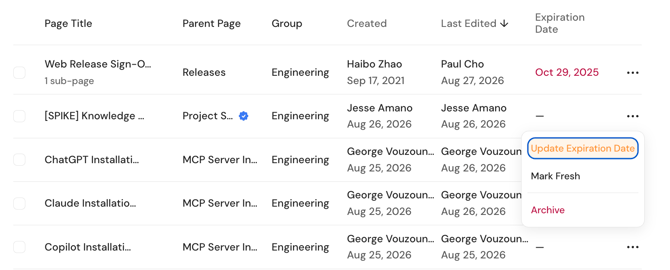
When choosing the three dots (...) icon to the right of the page, it will populate the following options (below). Here is what each item does:
|
OPTION |
ACTION TO COMPLETE TASK |
|
Update Expiration Date |
Allows you to update the expiration date or clear an expiration date. |
|
Mark Fresh |
Updates the "last edited" date to today's date and lists you as the individual that updated it last. |
|
Archive |
Moves a page and any sub-pages associated with it to the archives. |
Best Practices for Managing Pages
- Schedule Quarterly Audits: Have Resource Admins review the Manage Pages table once every quarter, focusing on pages with the oldest "Last Edited" dates.
- Reassign Inactive Owners Immediately: Filter or scan for inactive user tags to ensure former employee pages are transferred to active team members.
- Utilize the "Make Fresh" Action: Remind page owners that if a policy remains accurate, clicking "Make Fresh" updates the verification timestamp without requiring unnecessary page edits.
💬 Need More Help?
Have questions about managing workspace pages or setting up content governance in Haystack? Our support team is here to help!
- 💬 In-App Support Chat: Click the support chat icon in the bottom corner of your screen to chat with our team in real time.
- ✉️ Email Support: Send your questions to support@haystackteam.com for more help.
Keywords: Manage Pages, Resource Admin, Workspace Admin, Content Governance, Freshness Engine, Stale Content, Page Directory, Verified Badge, Page Expiration, Haystack Support