![Logo (Black Text)-1.svg]](https://support.haystackteam.com/hubfs/Logo%20(Black%20Text)-1.svg)
Light Mode versus Dark Mode- It’s the ultimate modern day rivalry. Are you team “I enjoy blinding brightness and functional retinas” or team “I work in a digital cave and fear the sun”?
Whichever camp you belong to, switching sides is easier than pretending you’re paying attention in a Friday afternoon meeting. Here’s how to toggle between the two:
How to Flip the Switch:
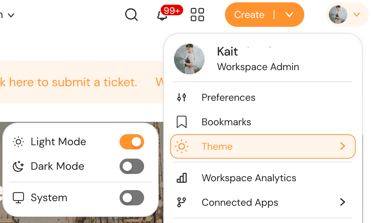
- In your workspace, click your profile picture (or your initials) in the top right corner.
- A menu will pop up. Locate Theme and give it a click.
- Make Your Choice: Select Light Mode or Dark Mode.
That’s it. Go back to your day, and don't worry—your secret is completely safe with us. 🤐
Need More Help?
If you encounter issues during setup or need assistance with calendar sync permissions, we are here to help:
- In-App Support Chat: Click the support widget icon at the bottom corner of your page to start a chat with our AI Team Member, Luna, for lightning-fast answers.
- Email Support: Send your questions to
support@haystackteam.comand our support team will get back to you during normal business hours (9am–5pm MST, Mon–Fri).
Keywords: Light mode, dark mode, change theme, theme