![Logo (Black Text)-1.svg]](https://support.haystackteam.com/hubfs/Logo%20(Black%20Text)-1.svg)
Connecting Haystack with your organization’s Outlook Calendar streamlines event management across your entire company. Instead of relying solely on emails or manual invites, admins can broadcast important Haystack events directly into employees' Outlook calendars with a few clicks. This ensures maximum visibility for town halls, team training, company holidays, and culture events without clogging up inboxes.
Setup Prerequisites
📌 Before getting started, make sure you meet the following requirements:
- Haystack Role: You must be a Haystack Admin to enable and authenticate the integration.
- Microsoft account: Haystack connects as a single Microsoft account and can only reach the calendars that account can already reach. You'll need an account with a mailbox that has permission to write to the calendars you want to sync to — ideally a dedicated service account rather than an individual's, since it appears as the organizer on every synced event. Connecting Outlook to Haystack may require approval from a Microsoft administrator in your organization.
Step-by-Step Setup Guide
Setting up the integration is a one-time process handled through the Admin Portal.
1.Access the Admin Portal:Log in to Haystack and navigate to the Admin Portal from your main user menu.
2.Navigate to Integrations:In the left-hand navigation menu of the Admin Portal, select Integrations.
3.Enable the Outlook Calendar Integration:
Locate Outlook Calendar Integration for Haystack in the list of available tools and toggle the switch to On.
4.Authenticate with Microsoft:
Click on Outlook Calendar Integration to launch the authentication prompt.
Sign in using your company’s designated Global Service Account or an admin account with global calendar access permissions, then accept the requested permissions to complete the authentication process.
5.Select External Calendars:
Once authenticated, select the specific external company calendars you would like to sync with Haystack from the configuration list. Save your settings.
To verify your setup was successful, confirm that the toggle remains active and the status displays as Connected.
How to Broadcast Events to Outlook Calendars
Once the integration is configured, event organizers can push any published or scheduled Haystack event directly to invited users' Outlook calendars.
1.Create and Publish an Event:
Create a new event in Haystack as you normally would, fill out the relevant details, and publish (or schedule) it.
2.Open Event Options:Go to the event page for the published or scheduled event. Click on the three dots (...) menu located at the top right of the event header.
3.Select Broadcast:From the dropdown menu, select Broadcast.
4.Share to Outlook Calendar:In the broadcast overlay, choose Share to company Outlook calendar.
5.Choose Target Calendar or Microsoft Group:Select the specific user group or department who should receive the invite on their Outlook calendars, then click Send. The event will automatically populate on the invited individuals' calendars.
To verify a broadcast was successful, check the event's broadcast history status or verify with a member of the targeted group that the invite appears on their Outlook calendar.
Microsoft Groups Integration
- Dedicated Management Tab: Admins can now view and manage synced Microsoft Groups under a dedicated tab in the Outlook Integration settings within the Admin Portal.
- Direct Broadcasting: Event broadcasts can be sent directly to Microsoft Groups, ensuring all members of a group receive calendar invites automatically without needing to select individual users.
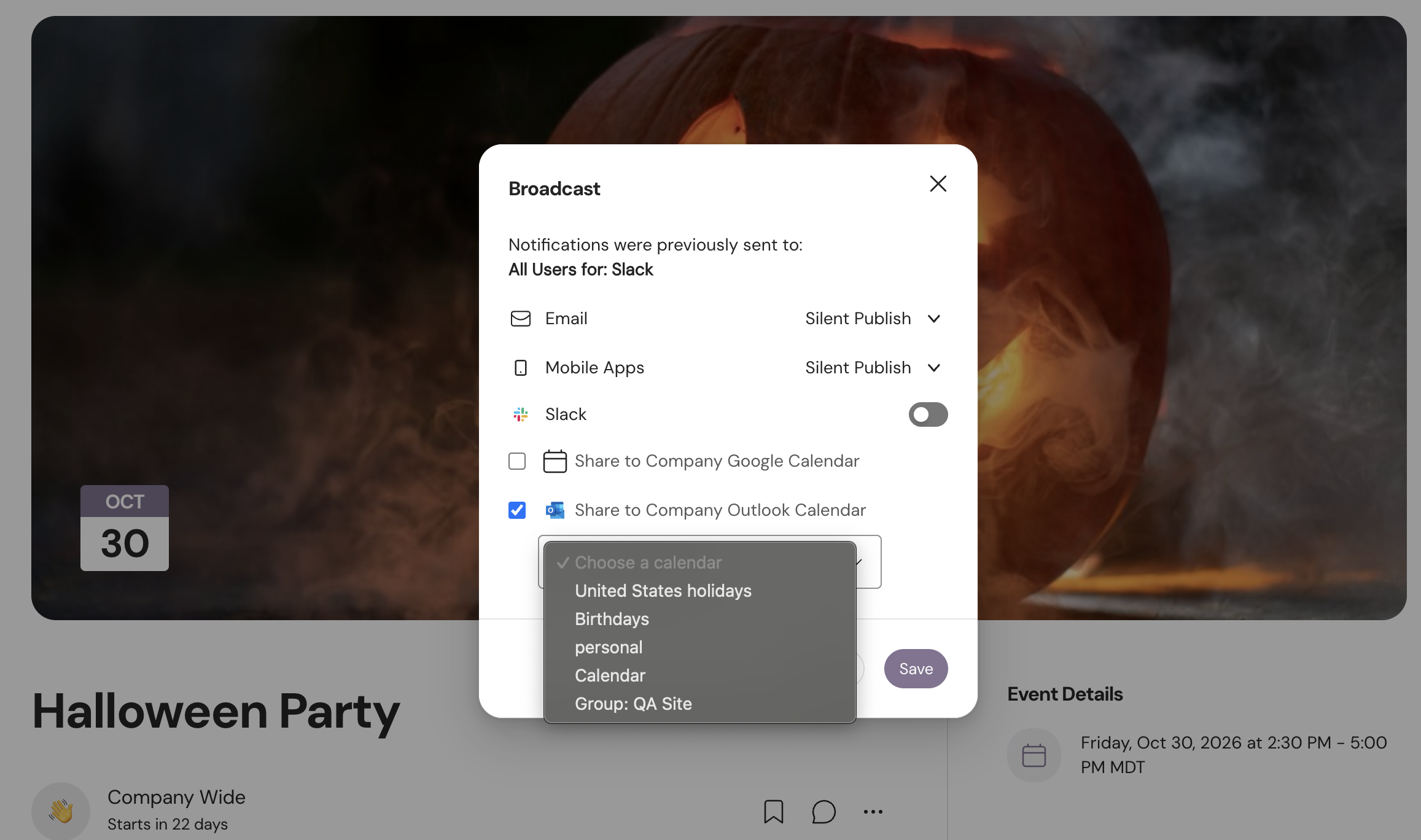
- Set up the event in your workspace
- Go to the event you'd like to Broadcast
- Click the [...] in the upper right hand corner and select "Broadcast"
- Click "Share to Company Outlook Calendar"
- Choose from one of the groups and hit "Save"
Sync Limits & Automated Email Notifications
Understanding how Microsoft Graph handles meeting requests and capacity limits ensures smooth broadcasting:
- Automated Email Notifications:
- Event Creation: When an event is created or broadcast, Microsoft Graph automatically dispatches meeting request emails to all included attendees.
- Event Updates: When an existing event is modified, update emails are selectively sent only to attendees whose status or details have changed, reducing unnecessary inbox noise.
- Attendee Capacity Limits:
- There is no documented hard limit per event in Haystack.
- Microsoft Exchange Online applies a practical limit of approximately 500 attendees per event. For larger audiences, consider splitting broadcasts across separate groups or scheduling via Microsoft Groups.
Best Practices
- Use a Dedicated Service Account: We strongly recommend using a non-person service account (e.g.,
haystack-integration@yourcompany.com) with Global Admin rights for authentication rather than an individual employee's account. This prevents integration breaks if the person leaves the company. - Target Specific Groups: Avoid broadcasting every event to the entire organization. Select relevant user groups during the broadcast step to keep employees' calendars clean and actionable.
- Update in Haystack: Always make edits to event times or details directly in Haystack so updates sync automatically to connected Outlook calendars.
Need More Help?
If you encounter issues during setup or need assistance with calendar sync permissions, we are here to help:
- In-App Support Chat: Click the support widget icon at the bottom corner of your page to start a chat with our AI Team Member, Luna for lightning-fast answers.
- Email Support: Send your questions to support@haystackteam.com and our (human) support team will get back to you during normal business hours (9am-5pm MST, Mon-Fri).
Keywords: Outlook, Calendar Integration, Admin Portal, Event Broadcasting, Setup Guide, Event Management, Integrations, Group Invites, Global Service Account, Attendee Limits, Microsoft Groups