![Logo (Black Text)-1.svg]](https://support.haystackteam.com/hubfs/Logo%20(Black%20Text)-1.svg)
Keeping your team aligned on essential company policies, annual compliance updates, and crucial announcements is vital for any organization. With Haystack’s Must-Read Pages feature, internal communicators and HR teams can flag high-priority resource pages as required reading, track reader acknowledgments, and prompt team members to confirm they have reviewed important content.
Table of Contents:
📌 To set up or manage Must-Read Pages in Haystack, you must have:
-
Admin or Page Manager permissions for the workspace or specific group pages
- Permission to access Insights to view acknowledgment status reports.
How to Mark a Page as "Must-Read" for Existing Pages
You can convert any new or existing standard resource page into a Must-Read page in just a few clicks.
- Navigate to the page you wish to mark as required reading.
- Click the [...] to the right of that page and hit "Settings" (the gear icon).
- Select Toggle on Mark as Must-Read.
- Click Save.
How to Mark a Page as "Must-Read" During Page Creation
- Upon finishing a page, click on the [...] in the upper right hand corner of the page and hit "Settings" (the gear icon).
- Select Toggle on Mark as Must-Read.
- Click Save.
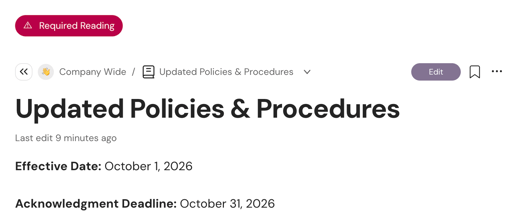
Note: Marking a page as "Must-Read" flags the page visually for your team. It will now display a "Required Reading" badge at the top of the page and a red dot will appear to the right of the page name until a user has read that page (see images below in next section for reference).
What Your Team (Readers) Will See
- In the All Pages List: Pages marked as Must-Read will display a red dot indicator next to the page title on the All Pages view, signaling unread required content.

- On the Page: Readers will see a "Required Reading" header at the top and a "Mark this page as read" acknowledgment button at the bottom of the page.

- Acknowledging Content: Once a reader reviews the content and clicks Mark as read:
- The button state updates to confirmed/acknowledged.
- The red dot indicator disappears from their All Pages view.
- Readers cannot re-acknowledge a page unless an admin resets acknowledgments.
Tracking Acknowledgments (Read Status)
To audit who has reviewed and acknowledged your Must-Read page:
- Open the Must-Read page.
- Click on the [...] in the upper right hand corner.
- Select Insights from the drop down menu.
- Select Read Status. From here, you can view a full list of team members as well as their acknowledgement status.
Updating Content & Resetting Acknowledgments
When annual policies or guidelines change (e.g., updating an Employee Handbook or Benefits Policy for the new year), you can update the existing page rather than building a new one from scratch.
- Open the Must-Read page and edit your content.
- Go to Settings.
- Select Reset all Must Read Acknowledgments.
- Save your changes.
What happens when acknowledgments are reset?
- All previous reader acknowledgments are cleared.
- Readers will see the red dot indicator return to their All Pages view.
- Readers must review the updated page and click Mark as read again.
Converting or Deleting Must-Read Pages
- Converting to a Standard Page: Toggle off "Mark as Must-Read" in Page Settings. The "Required Reading" badge and red dot indicators will disappear. Historical acknowledgment data is retained securely in the backend.
- Deleting a Page: Deleting a Must-Read page archives it using the standard Haystack deletion process. Associated acknowledgment history remains logged in the system database.
Best Practices
- Notify Your Team Manually: Marking a page as "Must-Read" adds visual indicators and in-app alerts, but does not automatically dispatch an email blast. Use Haystack Announcements (ie: make a post and including this page and pushing to Slack, Email or both). or send a quick email/chat update with a direct link when launching a critical Must-Read page.
- Reset for Major Revisions: Use the Reset Acknowledgments feature for major compliance updates so employees re-confirm their understanding. For minor typo fixes, save the page without resetting acknowledgments.
- Audit Regularly: Check the Insights > Read Status dashboard a week after publishing to follow up with team members who haven't yet acknowledged required pages.
Need More Help?
Have questions about managing permissions or analyzing page insights? We’re here to support you!
- 💬 Live Chat: Click the support chat widget in the bottom corner of your Haystack screen. Our AI agent is your fastest resource for answers.
- ✉️ Email Support: Reach out to us directly at support@haystackteam.com
Tags: must read pages, required reading, acknowledgments, page settings, read status, insights, policy management, admin guides, internal comms, haystack intranet