![Logo (Black Text)-1.svg]](https://support.haystackteam.com/hubfs/Logo%20(Black%20Text)-1.svg)
📌 Who can embed? Content creation permissions in your workspace are granted by your admins, which means that in some instances, not all users have the ability to create and edit content. If you're unsure about your permissions, reach out to your platform admins or our team at support@haystackteam.com.
A Few Fun Facts About Figma Embeds
Here are some cool things to keep in mind about bringing your designs into your workspace:
-
Permissions Are Respected: Security first! Our platform respects the original file permissions you've set in Figma. If a teammate doesn't have "Can View" access to the file in Figma, they won't be able to see the embed in your workspace.
-
Live Updates: No more re-uploading screenshots! Since this is a live embed, any tweaks, color changes, or layout updates you make in Figma will reflect in your workspace automatically.
-
Interactive Prototypes: It’s not just a flat image. If you embed a prototype link, your team can click through flows and interact with the design directly within the page.
How to Embed a Figma File
Ready to showcase your designs? Just follow these simple, step-by-step instructions.
First, in Figma:
-
Open the Figma file or prototype you want to embed.
-
Click the Share button in the top right corner.
-
Ensure the link sharing settings are correct (e.g., "Anyone with the link can view" or restricted to your organization).
-
Click "Copy link" to save the URL to your clipboard.
Then, return to Haystack:
-
When creating a post, page, or event, click onto a new line in the content body.
-
Type the forward slash key
/on your keyboard to open the content editor menu.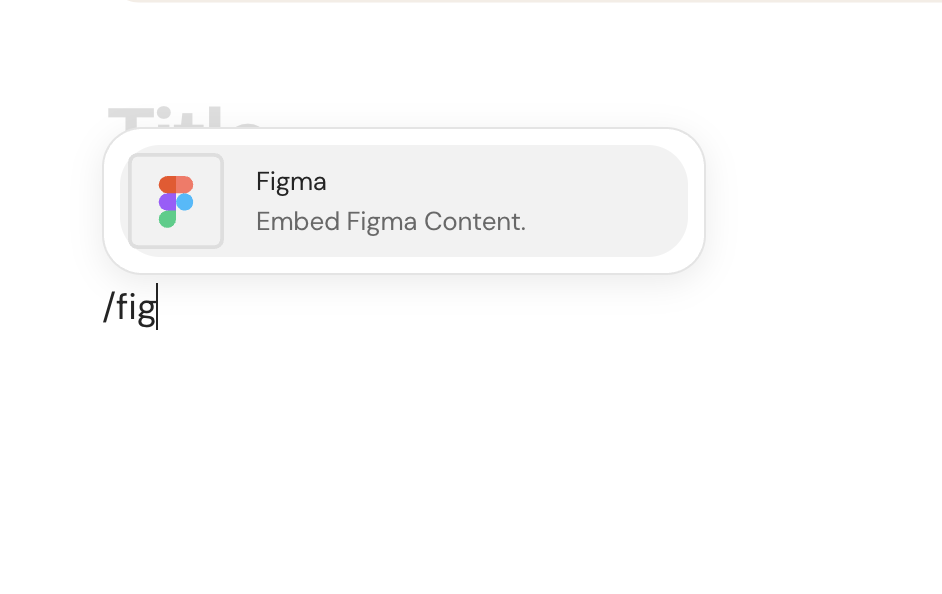
-
Scroll through the menu and select Figma.
-
Paste the Figma link from your clipboard into the URL text box.
-
Click Save. You'll see your live Figma canvas or prototype appear in-line.
-
Continue composing your content and Publish!
Happy designing! Go show off those pixels! 🎨
Keywords: Figma, embed, design, prototype, UX, UI, intranet, share, media, guide, instructions