![Logo (Black Text)-1.svg]](https://support.haystackteam.com/hubfs/Logo%20(Black%20Text)-1.svg)
Want to showcase your team’s interactive content, design experiences, and digital magazines without jumping between apps? Look no further—you can now embed your Ceros experiences directly in your workspace!
🛡️ Admin Note: Only Workspace Admins have the permissions to add or modify embed cards on the Main Dashboard. If you don't see the edit options, please contact your system administrator.
1. Access the Dashboard
Open your main dashboard in Haystack and scroll to the very bottom of the page you wish to add this feature to.
2. Add a New Card
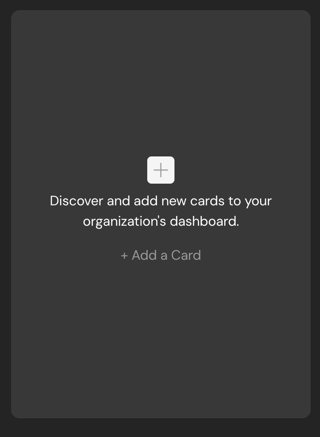
Locate and click the plus sign (+) labeled "Discover and add new cards to your organization’s dashboard."
3. Select the Embed Card
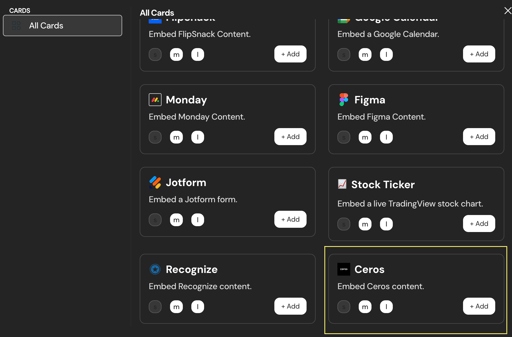
Scroll through the available cards until you see Ceros. Click +Add.
4. Generate Your Ceros Link
Now, head over to your Ceros account:
- Open the experience you want to share within your Ceros Admin dashboard.
- Click on the Publish or Share button for your specific experience.
- Ensure the experience is published and copy the Standalone URL or Embed Code.
5. Paste & Save
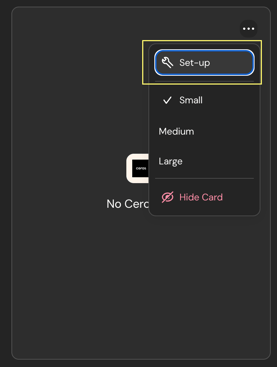
Return to your dashboard card, click the three dots (...) to select Set up, and paste your Ceros URL or Embed Code into the designated field. Hit Save!
6. Adjust Your View
Choose your preferred display size—Small, Medium, or Large—to ensure your interactive asset is perfectly visible by clicking the three dots (...) in your dashboard card.
📢 Pro Tip: Team Inspiration! 👥 Want to showcase design assets or active campaigns to specific departments? Group Admins can embed specific Ceros experiences directly within Group dashboards. Simply follow the steps below!
Need a world where your interactive Ceros content lives seamlessly within a post, a group, or a page you create? No worries—we've got you covered.
Once you have your space ready, it is as simple as hitting the backslash (/) and typing in "Ceros" until you see it appear in the editor menu. From there, follow Steps 4–6 from above and voila—you have your interactive design exactly where your team needs it most!
Cautionary Notes- Publish Status: Ensure your Ceros experience is fully Published so that your team members can view the live content. Draft experiences will not render on the dashboard.
Keywords: Ceros, Dashboard, Embed Experience, Ceros Integration, Interactive Content, Design Asset, Add Card, How to embed Ceros, Ceros URL, Standalone URL, Dashboard cards, Adoption, Engagement, Team Workflow, Ceros Widget, Visual Content, Dashboard setup