![Logo (Black Text)-1.svg]](https://support.haystackteam.com/hubfs/Logo%20(Black%20Text)-1.svg)
😕Wondering where Tenor went? As of June 30th, 2026, Google made the decision to permanently shut down its public third-party Tenor API. While this means the native Tenor search option has been removed from the Haystack editor, the great news is that you can still use GIFs across Haystack just as easily as before!
Although the built-in search is gone, the Tenor.com website itself remains fully active, and this article will show you how to quickly copy-paste or upload your favorite animated graphics from Tenor or alternative sources like GIPHY.
Prerequisites & Permissions
- Access: GIFs can be added by anyone with permissions to create or edit Posts, Pages, or Events.
- Consistency: These methods work identically across all content types and text areas within Haystack.
Video Tutorial 🎥
Are you a visual learner? We've got you covered. Check out our recording HERE of how you can use GIFs in your workspace.
Step-by-Step Guide: How to Use GIFs
There are two primary ways to bring GIFs into Haystack depending on where you want them to appear: pasting them directly into the body of your text, or uploading them as a header banner.
Adding a GIF as a Top Banner
1. Choose a GIF Source for Banner Use 0:26
- To add a GIF to the top banner, we recommend either:
- Giphy.com
- Tenor.com
- Select the source you prefer before searching for the GIF you want to use.
2. Download the GIF for the Banner 0:31
- On the GIF site, search for the desired GIF by typing a keyword into the search bar.
- Click the GIF image you want to use.
- Select Download to save the GIF to your device.
- Make sure the file is saved in a location you can easily find when uploading it to the post.
3. Upload the Downloaded GIF to the Banner 0:53
-
- Return to the banner post editor.
- Click Upload in the banner area.
- Choose the GIF file you downloaded from Giphy or Tenor.
- Confirm the upload so the GIF appears in the banner.
Adding a GIF to the Body of a Post or Page
1. Choose a GIF source. 1:06
- For GIFs inside the body of a post, use either Giphy.com or Tenor.com.
- Search for the GIF you want to insert into the post content.
2. Copy and Paste the GIF Into the Post Body 1:13
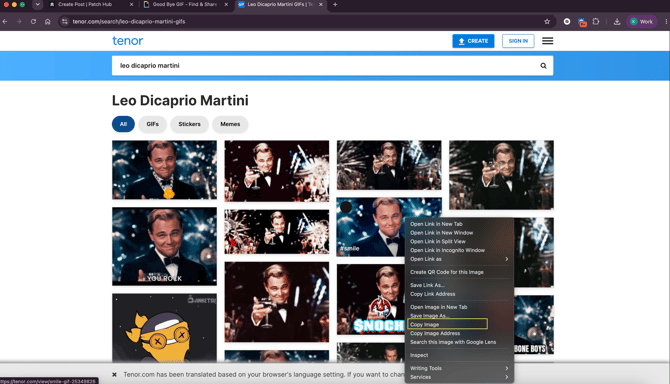
- Right-click the GIF you want to use.
- Select Copy Image.
- Return to the body of the post.
- Paste the copied GIF directly into the content area.

☝️Remember:
- Banner GIFs: must be downloaded first, then uploaded into the banner.
- Body GIFs: can be copied and pasted directly into the post.
Best Practices
- Keep File Sizes Mindful: While Haystack supports large files, very heavy GIFs can take longer to load for users on mobile devices or slower internet connections. Try to choose optimized GIFs when possible.
- Use High-Quality Sources: Platforms like GIPHY offer crisp, well-formatted animations that scale beautifully within both desktop and mobile views of Haystack.
- Match the Tone: A well-placed GIF is a fantastic way to celebrate a team win, a birthday, or a company milestone. Use them to break up long blocks of text and keep your internal communications feeling fresh and human.
Need More Help?
Confused about a step or having trouble getting your GIF to paste correctly? Our team is here to help you keep your content lively!
- Chat with us: Use the support chat icon located on-page for immediate assistance.
- Email us: Contact our support desk at any time via support@haystackteam.com.
Keywords: GIFs, Tenor, GIPHY, Content Editor, Images, Formatting, Rich Media, Banner, Posts, Updates