![Logo (Black Text)-1.svg]](https://support.haystackteam.com/hubfs/Logo%20(Black%20Text)-1.svg)
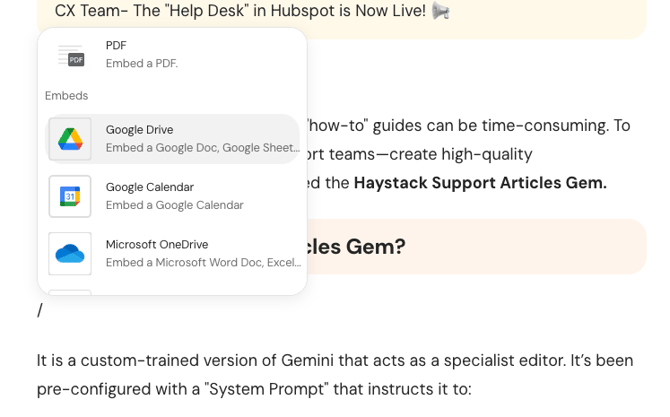
The Haystack content editor is designed to let you build beautiful, professional content without needing a background in web design. By using the forward slash (/) command, you can access a full suite of tools—from basic text formatting to live embeds from platforms like Google Drive, Figma, and Airtable. Whether you are drafting a company-wide announcement or a detailed resource page, the editor keeps all your tools just a keystroke away.
a detailed resource page, the editor keeps all your tools just a keystroke away.
Prerequisites & Permissions
-
Access: The editor is available to anyone with permissions to create Posts, Pages, or Events.
-
Consistency: The editor works identically across all content types, so once you learn it once, you’re set for everything.
How to Use the /-Editor
1. Activating the Menu
When you are in the body of a Post, Page, or Event:
-
Type
/on your keyboard to open the rich content menu. -
Alternatively, click the Plus (+) icon that appears on any empty line.
2. Formatting Text & Layout
The editor provides a variety of structural blocks to organize your writing:
-
Headings: Use H1 (Large) or H2 (Medium) to section your content.
-
Lists: Choose from Bulleted, Numbered, or Checklists (To-Do).
-
Quotes & Callouts: Use these to highlight important statements or warnings.
-
Dividers: Add a horizontal line to visually separate topics.
-
Tables: Create inline tables to compare data or organize information.
Note: We are constantly expanding our library of supported formatting tools. Be sure to check back regularly for new layout updates!
3. Adding Rich Media & Embeds
Haystack supports a massive library of third-party embeds that stay updated in real-time:
-
Media: Upload Images, create Image Galleries, or search for photos via Unsplash.
-
Video: Embed content from YouTube, Vimeo, Wistia, and more.
-
External Tools: Seamlessly pull in live data from:
-
Cloud Storage: Google Drive, OneDrive, Dropbox, Box.
-
Project & Design: Figma, Canva, Monday.com, Airtable, SmartSheet.
-
Forms: Google Forms, Jotform, Cognito Form.
-
Data: PowerBI, Tableau, Looker.
-
Note: You can find a full list of supported third-party embeds here: Directory of In-Line, Third-Party Content Integrations
Note: Our engineering team is frequently adding new integrations. Keep an eye out for updates to this list to help streamline your workflow!
4. Moving and Managing Content Blocks
The editor uses a "block-based" system, making it easy to rearrange your draft:
-
Reorder: Hover over any block and click the six-dot drag handle on the left to move it up or down.
-
Delete: Click the trash can icon next to the drag handle to remove a block.
-
Quick Edit: Highlight any text to see a floating menu for bold, italics, or linking.
Best Practices
-
Use "Compose with AI": If you're facing writer's block, use the Compose with Haystack AI feature (powered by Google Gemini) to generate a starting draft.
-
Leverage Live Embeds: Instead of uploading a static PDF that might become outdated, embed the live Google Doc or OneDrive file so changes reflect automatically.
-
Break Up Text: Use Dividers and Callout blocks to make long-form articles more scannable for your mobile audience.
-
Social Advocacy: Use the "Share to LinkedIn" or "Share to Facebook" blocks to encourage your team to amplify company news on their personal networks.
Need More Help?
Need a hand with a specific embed or curious about a feature?
-
Chat with us: Use the support chat on-page for immediate assistance.
-
Email us: Contact the support team at support@haystackteam.com.