![Logo (Black Text)-1.svg]](https://support.haystackteam.com/hubfs/Logo%20(Black%20Text)-1.svg)
📌 Content creation permissions are set by your admins, so if you're not sure if you have the ability to create or edit content, just reach out to them or our support team at support@haystackteam.com for a quick check.
A Few Fun Facts About SharePoint Embeds
Here are some cool things to keep in mind about embedding files from Microsoft SharePoint:
-
Permissions Are Respected: Just like with Google, Haystack respects your Microsoft 365 permissions. If a teammate doesn't have access to the file within SharePoint or OneDrive, they won’t see it in Haystack. It keeps your sensitive data safe!
-
Live Syncing: Any edits you make to your Word doc, Excel sheet, or PowerPoint slide in SharePoint will reflect in Haystack automatically. No need to re-upload or update links.
-
Two Ways to Embed: Depending on your organization’s setup, you can often use a Share Link or an Embed Code. We recommend the Share Link for the smoothest experience!
How to Embed a SharePoint File
Ready to bring your Microsoft files into Haystack? Just follow these steps!
First, in SharePoint:
-
Open the document you want to embed in your browser (Word, Excel, or PowerPoint).
-
Click the Share button in the top right corner.
-
In the dropdown, click Copy Link.
-
Pro Tip: Ensure the link settings allow the right people to view it (e.g., "People in your organization").
-
-
If you prefer a specific view for a PowerPoint or Excel sheet, you can also go to File > Share > Embed to copy the specific
<iframe>code.
Keep that link or code copied—you’ll need it in a second!
Then, in Haystack:
-
Start a new post, page, or event.
-
Click on a new line in the content body and type a forward slash (/) on your keyboard to open the content editor.
-
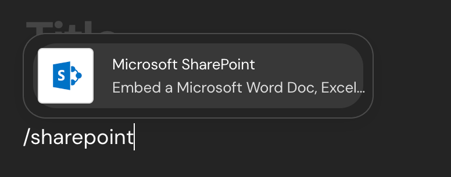
Either start typing "Sharepoint" or scroll down and click on the SharePoint option.
-
Paste the link or embed code you copied into the "Add URL or Embed Code" text box.
-
Click Save. Your document will appear right in the flow of your content!
-
You can easily resize the embed by clicking and dragging the black resize bar at the bottom.
Continue composing the rest of your content, and then hit publish! Your team can now view your SharePoint files without ever leaving Haystack. 🚀
Keywords: SharePoint, Microsoft 365, OneDrive, embed, content, files, Word, Excel, PowerPoint, intranet, permissions, automatic updates, guide, instructions