![Logo (Black Text)-1.svg]](https://support.haystackteam.com/hubfs/Logo%20(Black%20Text)-1.svg)
📣 Only users with Workspace Admin permissions can disable asset downloads in your workspace. If you're unsure about your permissions, reach out to your platform admins or our team at support@haystackteam.com.
About Asset Downloads: The Security Context
By default, any in-line asset you upload to Haystack—including files, PDFs, videos, and images—can be downloaded by viewers. If maintaining security and confidentiality is a top priority for your team, you can easily turn this global permission off.
📌 Important Note on Embeds: If your content assets are shared via an embed integration (like Google Drive, SharePoint, or OneDrive), viewers may still be able to click out to the source document where downloading might be allowed. To truly lock down this content, ensure your security settings at the source platform are configured to limit downloads.
Disabling Asset Downloads (For Workspace Admins)
This is a global setting that affects every piece of content in your workspace.
-
Click the account dropdown in the top right corner of your screens and select Admin Console.
-
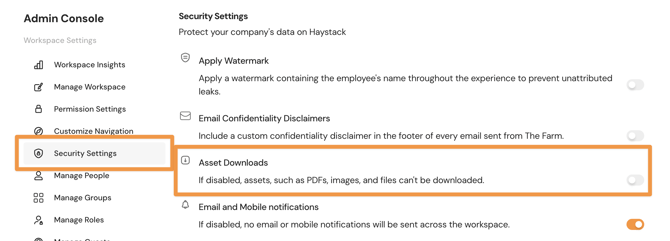
In the left-hand navigation menu, click Security Settings.
-
Toggle OFF the Asset Downloads switch.
-
Click Save at the bottom of the page.
Once this setting is turned off, users will no longer be able to download any assets directly uploaded to your workspace.
And there you have it! You've locked down your files! Rest easy knowing your confidential content is secured within your Haystack boundaries.
Keywords: Haystack, asset downloads, disabling downloads, security settings, Admin Console, confidentiality, files, media, global settings, Workspace Admin