![Logo (Black Text)-1.svg]](https://support.haystackteam.com/hubfs/Logo%20(Black%20Text)-1.svg)
Effective communication is about balance. Haystack allows Workspace Admins to define the default notification settings for their team, ensuring everyone stays in the loop without being overwhelmed by pings. Whether you want real-time updates for @mentions or a weekly digest for new pages, you can tailor the experience to fit your company culture.
Prerequisites
-
Permissions: You must be a Workspace Admin to access the Admin Console and modify global notification defaults.
-
Timeline: While these can be changed at any time, we recommend setting these up during your initial implementation before going live.
How to Set Notification Defaults
Follow these steps to configure how your users receive updates:
Note: These changes apply only to new users added to the system after you hit save. Existing users who have already customized their preferences will not be affected.
-
Access the Admin Console: Click on your profile picture in the top right corner and select Admin Console from the dropdown menu.
-
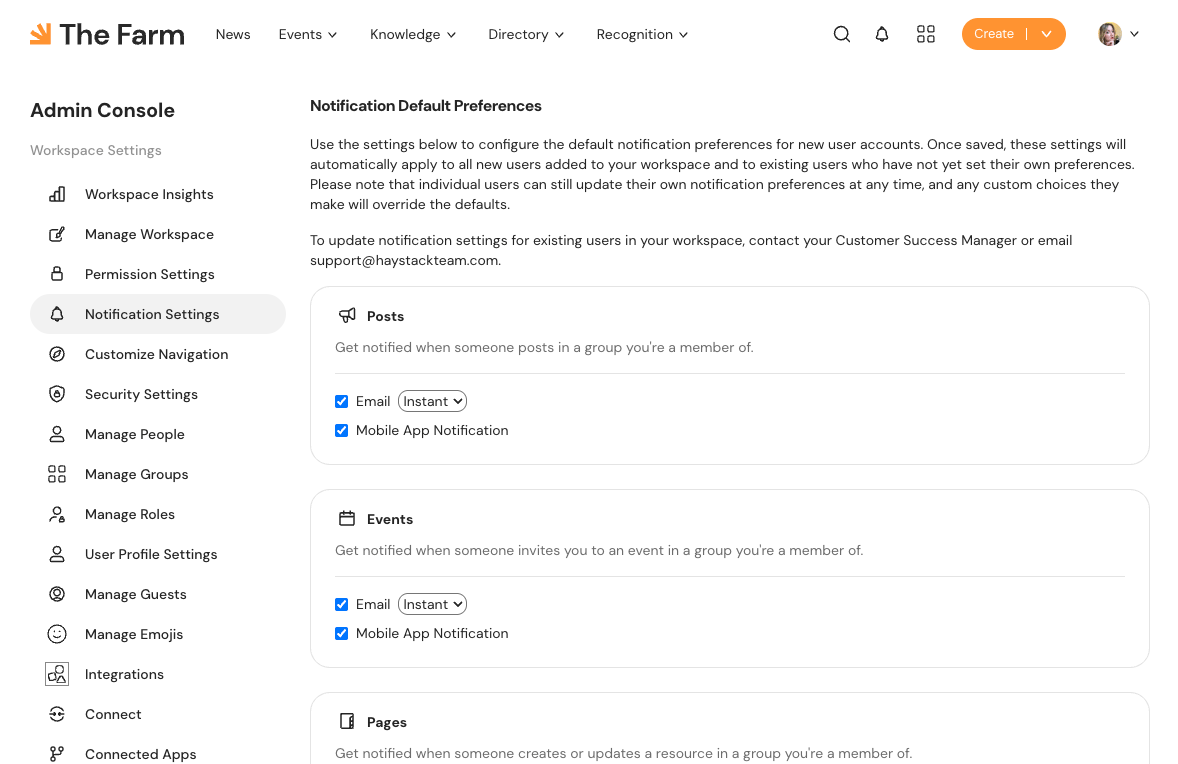
Navigate to Notification Settings: On the left-hand sidebar, click on Notification Settings under the Workspace Settings section.
-
Review Notification Types: You will see a list of categories where notifications are triggered:
-
Posts: Updates from groups a user is a member of.
-
Events: Invitations to events posted in a group a user is a member of.
-
Pages: Notifications when someone creates or updates a resource in a group a user is a member of.
-
Mentions: Alerts when a user is tagged in a post, comment, event, or page.
-
-
Choose Frequency & Channel: For each category, you can toggle Email or Mobile App Notifications. For emails, choose from:
-
Instant: Sent immediately.
-
Daily: A summary sent at the end of each day.
-
Weekly: A wrap-up sent every Friday afternoon.
-
-
Save Changes: Once you’ve configured the settings to your liking, scroll to the bottom and click Save.
Note: Once set, users will be able to further customize their notifications preferences in their account settings. These settings simply configure the defaults.
Best Practices
-
Start Quiet: For high-volume workspaces, consider setting "Pages" to a Daily or Weekly digest to prevent "notification fatigue."
-
Prioritize Mentions: We recommend keeping @mentions set to Instant so team members don't miss direct requests or urgent communications.
-
Encourage Individual Autonomy: Remind your team that they can always override these defaults in their own personal settings to fit their specific workflow.
-
Audit Periodically: As your team grows, check back on these settings to ensure the "noise level" is still appropriate for your organization.
Need More Help?
If you would like to bulk-update notification settings for existing users (overriding their current choices), our team can help!
-
Chat with us: Use the support chat icon on this page.
-
Email us: Reach out to support@haystackteam.com or contact your Customer Success Manager directly.
Keywords: Notifications, Admin Console, Email Preferences, Mobile Alerts, Daily Digest, Weekly Digest, Workspace Settings, Communication, Default Settings, User Onboarding.