![Logo (Black Text)-1.svg]](https://support.haystackteam.com/hubfs/Logo%20(Black%20Text)-1.svg)
Templates are a powerful way to maintain a consistent look and feel across your Haystack workspace. Instead of starting from scratch every time you need to publish a weekly update or a new resource, you can use a template to pre-fill formatting, headers, and even placeholder images. This not only saves time but ensures your workspace looks professional and cohesive.
Common uses for templates include:
-
Weekly or Monthly Newsletters: Set your layout once and just swap the text.
-
Product Releases: Ensure every update follows the same structural flow.
-
Resource Pages: Keep your "How-To" or "FAQ" pages looking uniform.
-
All-Hands Recaps: Standardize how you share meeting notes with the team.
Prerequisites & Permissions
Before you get started, here is what you need to know about permissions:
-
Content Creators: Any user with content creation permissions can create and manage Private Templates for their own use.
-
Admins: Admins have the ability to create templates and also "elevate" private templates to Admin Picks, making them available for everyone in the workspace to use.
How to Create and Manage Templates
1. Accessing the Template Menu
To find your templates, navigate to the top right of your Haystack dashboard:
-
Click the down arrow next to the Create button.
-
Hover over Templates.
-
Select either Post or Page depending on which type of content you want to build. This will open the templates manager.
2. Understanding the Template Workspace
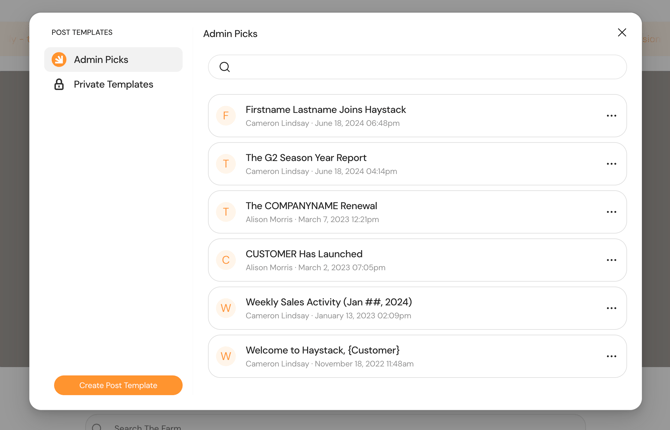
Once the template manager window opens, you will see two main categories on the left sidebar:
-
Admin Picks: These are verified templates available to the entire organization.
-
Private Templates: These are templates created by you, for your own use.
3. Creating a New Template
-
Click the Create [Post/Page] Template button at the bottom left.
-
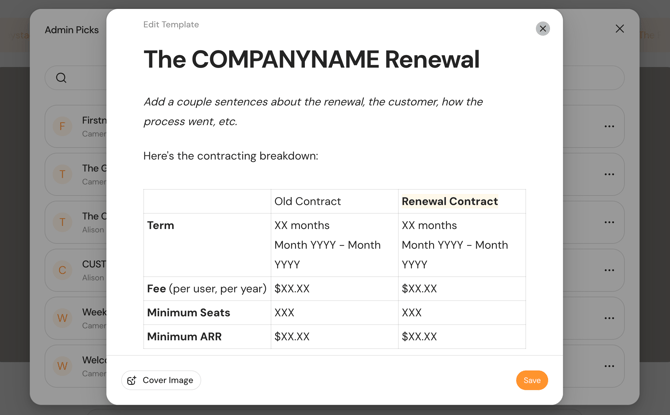
Add a Subject: This will be the default title for anyone using the template.
-
Build your Content: Use the rich content editor (type
/to see options) to add headings, bullet lists, or images. -
Add Placeholders: It is helpful to type prompts like "[Add Image Here]" or "[Insert Video Recording Here]" to guide future editors.
-
Save: Click Save in the bottom right corner to add it to your Private Templates.
4. Editing, Deleting, or Sharing Templates
To manage an existing template:
-
Find the template in your list and click the three dots (...) on the right side.
-
Edit Template: Re-opens the editor to make changes.
-
Delete Template: Permanently removes the template.
-
Make Admin Pick (Admins Only): This moves the template from your private list to the public list for all creators.
Best Practices
-
Use Placeholder Text: Use brackets or bold text to show creators exactly where they need to customize the content.
-
Standardize Headers: Use H1 and H2 tags in your templates to ensure all company posts follow the same visual hierarchy.
-
Include a Cover Image: If your company uses a specific brand style for post headers, include a default cover image in the template.
-
Review Regularly: Periodically check your "Admin Picks" to ensure they align with current branding or communication goals.
Need More Help?
If you have questions about setting up your first template or need assistance with permissions, we are here for you!
-
Chat with us: Use the support chat bubble on this page for a real-time conversation.
-
Email us: Reach out to our team at support@haystackteam.com.
Keywords: Templates, Content Creation, Admin Picks, Private Templates, Formatting, Newsletters, Posts, Pages, Workspace Consistency, Internal Comms.