![Logo (Black Text)-1.svg]](https://support.haystackteam.com/hubfs/Logo%20(Black%20Text)-1.svg)
INTEGRATION DEPRECATED:
This integration has been deprecated due to an unexpected change on Microsoft’s side on December 31, 2025. Microsoft unexpectedly retired support for incoming, webhook-based integrations, which impacted Haystack and many other integration partners. We do hope to introduce a new Microsoft Teams integration using alternative Teams-supported options in 2026. Please reach out to your Haystack Customer Success Manager our our Support team for more information.
You’ll need to have Workspace Admin permissions in Haystack to set up the main integration. If you’re not sure about your permissions, just ask your platform admin or our team at support@haystackteam.com. You might also need special permissions in Teams, so if you run into any trouble, reach out to your Teams admin or IT team.
Connecting Haystack to Microsoft Teams makes it easy to for your team to receive new content notifications in the Teams channels they use most. Setting up and using your Teams integration is quick and easy.
Part 1: Connect Haystack to Teams
This first part just connects the two tools—it won't start sending notifications yet. We'll set up notifications in the next section.
Note: To connect Haystack to Teams, you may need special permissions in Teams. If you're unsure about your permissions or run into any roadblocks, we suggest reaching out to your Teams admin or internal IT team.
-
Click the arrow next to your profile picture in the top right corner of your screen and select Admin Console.
-
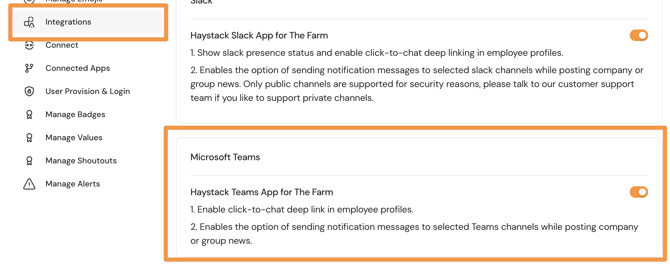
In the left-hand menu, click on Integrations.
-
Toggle on the Haystack Teams App. A pop-up will ask you to accept the integration requirements. If you don’t see it, be sure to check your browser settings to allow pop-ups.
-
You'll know it's connected when the toggle turns a colorful ON.
Part 2: Configure Teams Notifications
Once the app is connected, you can link specific Haystack groups to your Teams channels. This will automatically send notifications about new posts and events from that group.
Note: If you haven't launched Haystack yet, we highly recommend waiting until after your launch to set this up. Notifications will send automatically, which could accidentally send communications too early!
To connect a group, you must be a Workspace Admin, Group Admin, or Group Owner. Here’s how:
-
Go to the Teams channel you want to connect to a Haystack group.
-
Click the three-dot button next to the channel name and select Connectors.

3. From the menu, find Incoming Webhook and click the Configure button.

4. On the next page, add your Haystack workspace name and branding, then click Create.
5. Once it's created, copy the newly created webhook link.

6. Click Done and go back to your Haystack workspace.
7. Go to the Haystack group you want to connect to that Teams channel.
8. Click the dropdown arrow in the group's header and select Connect Teams from the left-hand navigation.
9. Paste the webhook link you copied into the text box and click the Save button.

And voila! From now on, any new posts or events shared in that Haystack group will automatically show up as notifications in your Microsoft Teams channel.
Keywords: Microsoft Teams, teams integration, notifications, push notifications, group, channel, webhook, admin, guide, instructions, help, connected apps, integrations