![Logo (Black Text)-1.svg]](https://support.haystackteam.com/hubfs/Logo%20(Black%20Text)-1.svg)
Want to make your Haystack workspace truly feel like it belongs to your company? You can easily customize it with your own logos, colors, and even your unique lingo. This guide will walk you through how to put your company’s personal stamp on Haystack.
📌 Only Workspace Admins can make these changes, so if you're not an admin, you'll need to ask one to help out.
Once you're ready, here’s what to do:
-
Go to your settings. Click the little arrow next to your name or photo in the top right corner of the screen. A dropdown menu will appear.
-
Select Workspace Settings.
-
Find Manage Workspace. On the left-hand menu, click on Manage Workspace.

Brand It Your Way
Now for the fun part! This page is where you can change the look and feel of your Haystack workspace.
-
Logos and Colors: Upload your company logo and choose your brand colors. This will make Haystack match your company's vibe.
-
Aliases: You can change the words Haystack uses to fit your company culture. For example, you can change "People" to "Haystackers" or "Employees"—whatever sounds more like you!
Don't forget to click Save at the bottom of the page!
Asset Templates
Need help with image sizes? No problem! Here's your cheat sheet to all of the spec requirements on the Haystack site:
| Image Type | Recommended Size (Pixels) | Aspect Ratio | Notes |
| Group Banner | 1128 x 216 | Approx. 5.2:1 | High-resolution image for group pages. |
| Profile Banner | 744 x 184 | Approx. 4:1 | High-resolution image for user profile pages. |
| Workspace/Email Logo (Upper right hand corner of dashboard) | 150 x 36 | Approx. 4:1 | Critical for brand consistency. See File Types section below. |
| Post Cover | 800 x 360 | Approx. 2.2:1 | The main image displayed with posts. |
| Page Cover | 875 x 437.5 | 2:1 | Used for main informational pages. |
| Event Cover | 2880 x 1264.8 | 2.28:1 | High-impact image for event pages. |
| Carousel | 1128 x 480 | Approx. 2.35:1 | Used in dedicated carousel sections on the dashboard. |
| Profile Photos (User & Group) | 440 x 440 | 1:1 | A square image works best for all profiles. |
| Post Thumbnail | 112 x 112 | 1:1 | A small, square representation. |
| Event Thumbnail | 112 x 112 | 1:1 | A small, square representation. |
| Dashboard Card (Large) | 1128 x 480 | Approx. 2.35:1 | Used for static image dashboard content. |
| Dashboard Card (Medium) | 744 x 480 | Approx. 1.55:1 | Used for static image dashboard content. |
| Dashboard Card (Small) | 360 x 480 | Approx. 0.75:1 | Used for static image dashboard content. |
-
File Types: For your main logos (like your workspace, email, and Slack logos), we highly recommend using an .svg file. It’s the best way to make sure your logo looks crisp and clear on all devices.
Announcements & Profile Assets
Towards the bottom of the Manage Workspace page, you'll find a section where you can upload assets for announcements and profile covers. Once you upload them, your team can easily use them when creating content or customizing their profiles. This is a great way to make sure everything looks consistent and beautiful!
Pro-Tip: We suggest uploading about 10 different images so your team has plenty of options to choose from.

Font Customizations
Want to take customization one step further and use a different font for your workspace?
Workspace Admins can choose from one of the ten options for Font Families within Haystack.
To do so:
-
Visit the Admin Console.
-
Select "Manage Workspace" on the left hand side.
-
Scroll down until you find the "Customize Workspace Identity". There, you'll see "Font Family". Choose one of our ten available options and save!
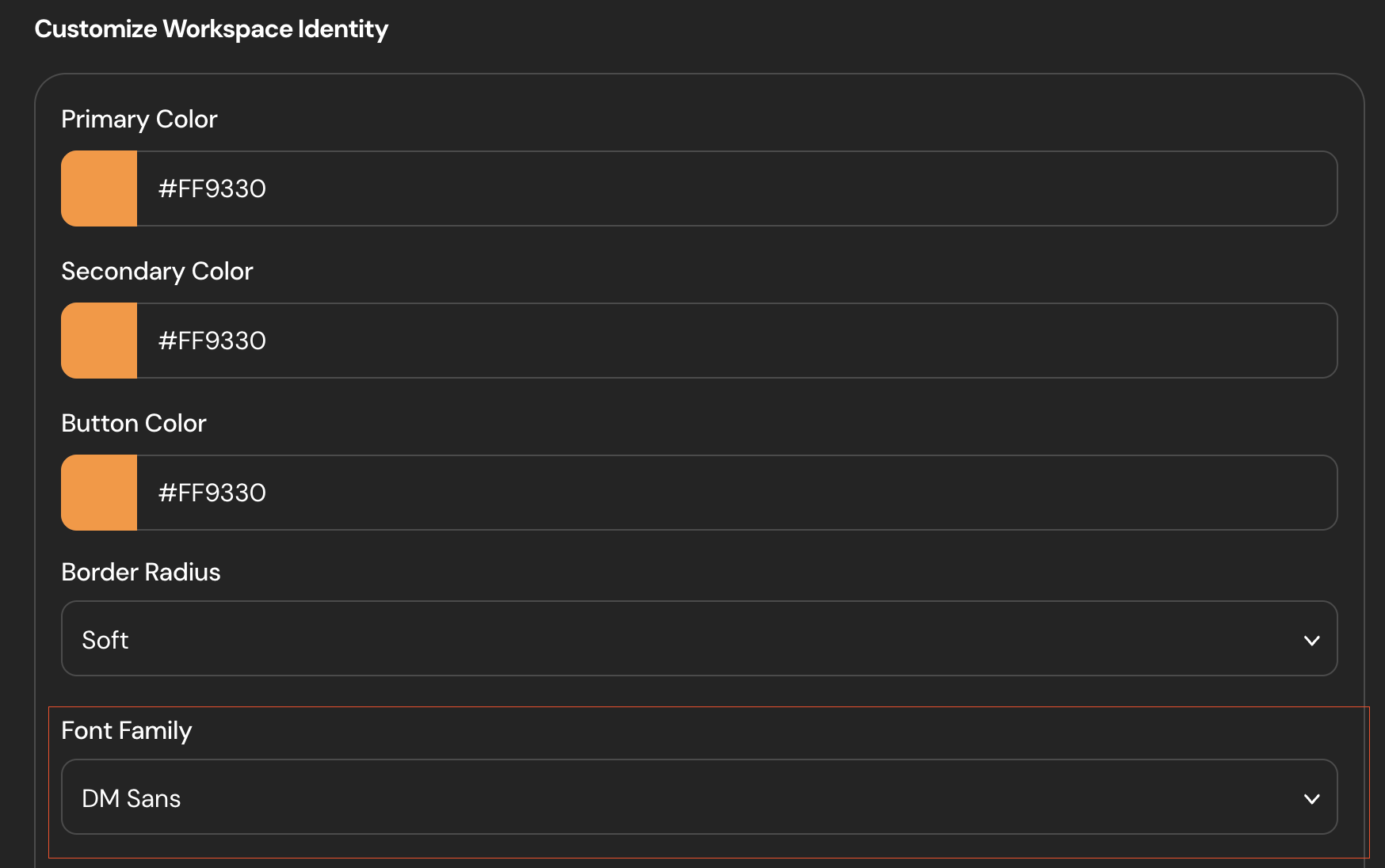
📌 Don't see "Font Family" in your Admin Console? No worries. As of March 2026, this is a brand new feature and is in Beta Mode. If you'd like to use it, please reach out to your CSM or support@haystackteam.com- we're more than happy to help!
That's it! Your Haystack workplace is now beautifully branded and ready to go. Great job!
Keywords: workspace settings, branding, colors, logo, customize, manage workspace, aliases, user photos, profile, dashboard, assets, templates, figma, no-code, company culture, design, admin, permissions, specs, images, sizes