![Logo (Black Text)-1.svg]](https://support.haystackteam.com/hubfs/Logo%20(Black%20Text)-1.svg)
📌 Important note before you get started: To manage these permissions, you must be a Workspace Admin or a Group Owner. Standard users cannot grant page-specific editing rights to others.
Our new page-specific editor permissions allow you to delegate the responsibility of page maintenance more effectively. You can now invite a team member to manage a single, specific page (like a Benefits or IT FAQ page) without giving them the keys to your entire group.
Watch the video to see how to assign these permissions and manage your list of page-specific editors or check out our step-by-step guide below.
Assigning an Editor to a Specific Page
1. Accessing Group Pages 0:22

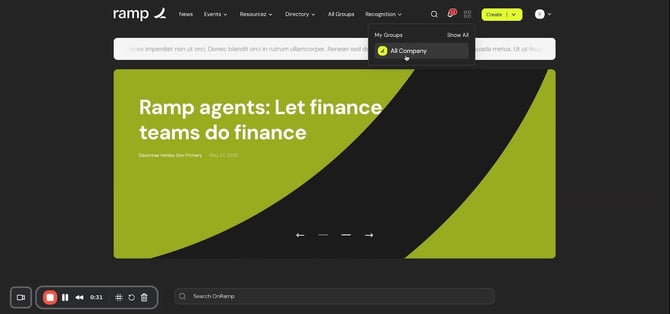
- Click on the four squares in the upper right-hand corner to view all groups you are in.
- Select 'All Company' from the list.
- Once in 'All Company', click on 'Pages' to view all pages within this group.
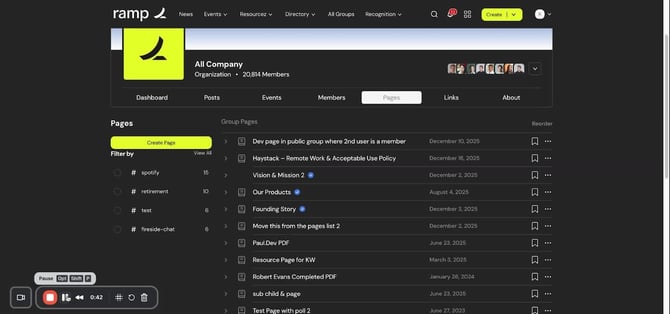
- Browse through the list of pages and select the specific page you want to assign editing access to.
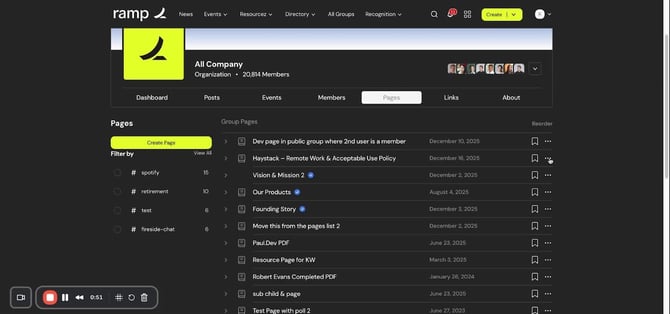
- Click on the three dots next to the selected page.
- Choose 'Editing Permissions' from the dropdown.
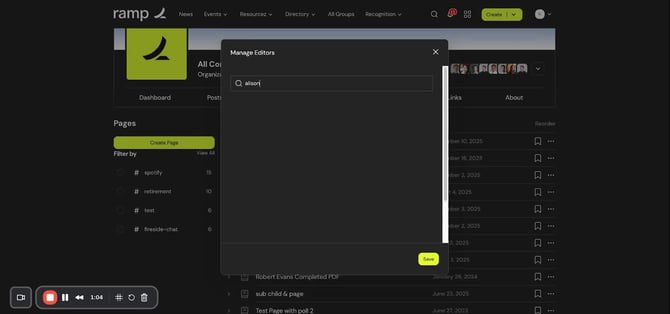
- Look up the person you want to assign as an editor (e.g., Allison).
- Click 'Save' to confirm the changes.
Reviewing Editor Access
1. Birds Eye View on Editor Access 1:07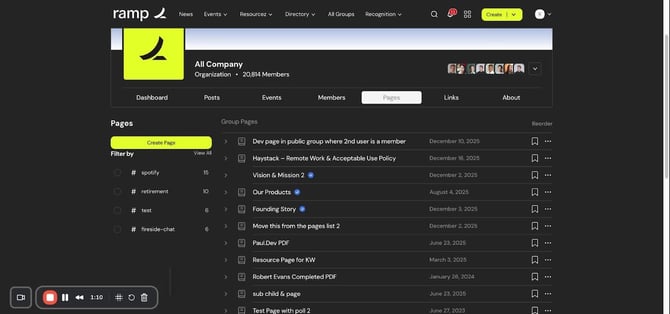
- To view who has access to edit which pages, click on the dropdown arrow in the upper right-hand corner.
- Select 'Settings'.
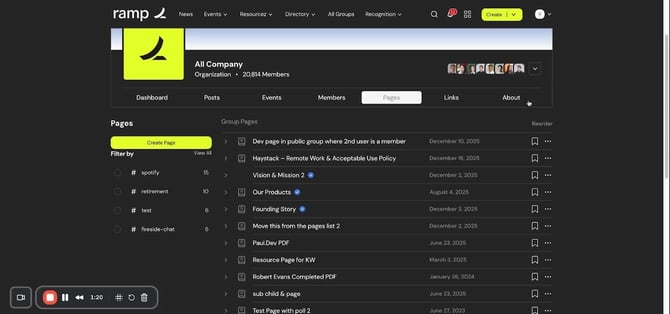
- On the left-hand side, click on 'Permission Settings'.
- Scroll down and select 'Manage Editors' to see a comprehensive view of editing access.
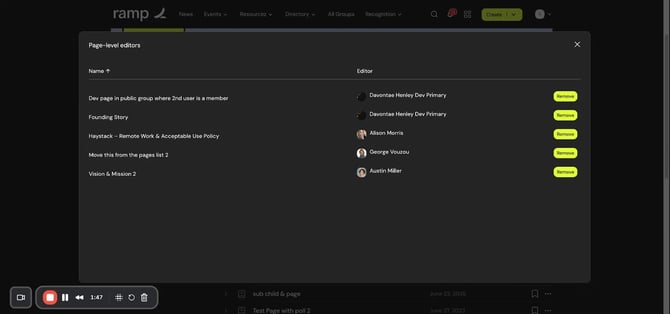
- From the 'Manage Editors' section, you can easily remove individuals who no longer need access.
Cautionary Notes
- Ensure that you only grant editing permissions to individuals who require access to maintain security and organization.
- Regularly review editor access to keep your workspace clean and secure.
Use Cases & Benefits
- Shared Maintenance: Spread the workload by letting subject matter experts update their own specific content without cluttering their interface with full admin tools.
- Broad Groups: Ideal for large company-wide groups where you might have dozens of pages owned by different departments.
📩 If you encounter issues or require further assistance with these settings, please reach out to us: Email: support@haystackteam.com
Keywords: Page Permissions, Granular Permissions, Editing Access, Manage Editors, Admin Settings, Permission Settings, User Access Control, Internal Documentation, Content Management, Security Audit, All Company Pages, Revoke Access, Workspace Organization