![Logo (Black Text)-1.svg]](https://support.haystackteam.com/hubfs/Logo%20(Black%20Text)-1.svg)
Keep your team informed with real-time market data directly on your dashboard.
The Stock Ticker Card is a great way to keep company performance or relevant market trends front and center for your employees. Whether you’re tracking your own company’s ticker or a set of industry benchmarks, this card provides live updates in a clean, professional format.
📌 Permissions: You must be a Workspace Admin or a Group Owner with "Edit" permissions for the specific Page or Dashboard you are modifying.
📽️ Video Tutorial
Check out the 20-second tutorial by clicking HERE.
🛠️ Step-by-Step Guide
-
Enter Edit Mode: Navigate to the Page or Dashboard where you want the ticker to appear and click Add Card (or the "+" icon in an empty slot).
-
Select the Card: From the card library, locate and select the Stock Ticker card.
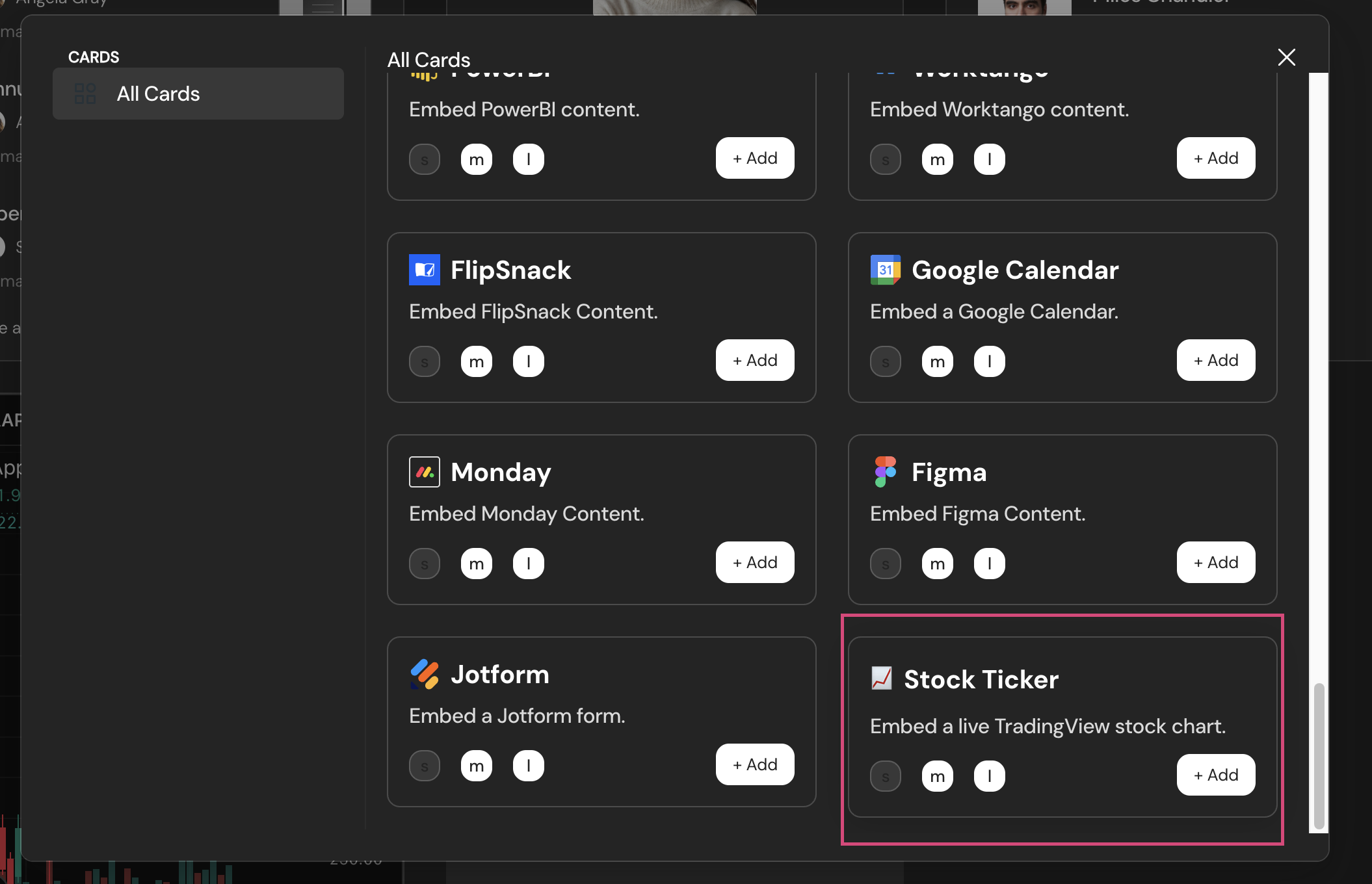
-
Search for Stocks: In the configuration panel, begin typing the name of the company or the specific ticker symbol (e.g., type "Apple" or "AAPL").
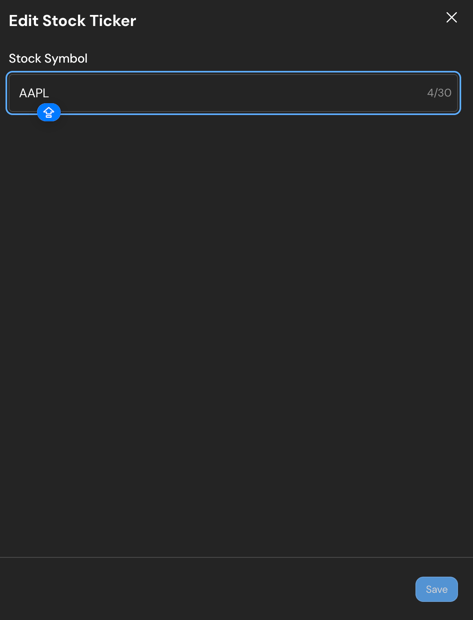
-
Save: Once you've added the desired tickers, hit Save. The card will now appear live on your page with up-to-the-minute data.
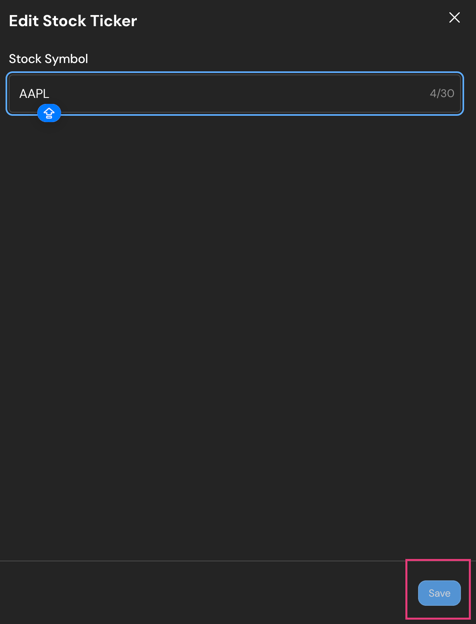
-
Go back to the dashboard to view the stock that was added.
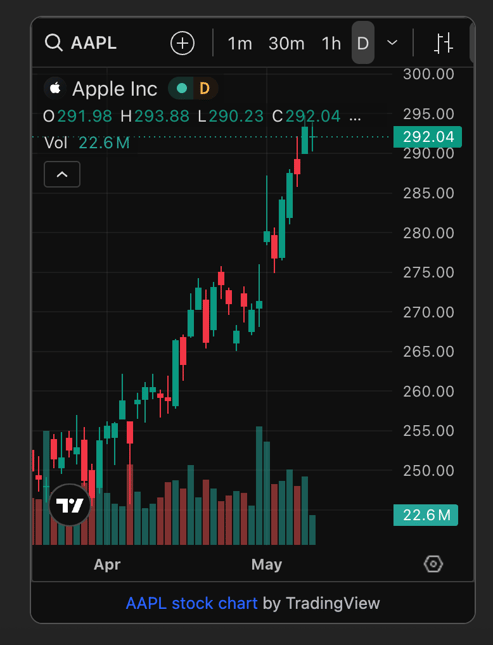
🆘 Need More Help?
-
Chat with us: Use the support chat bubble on this page for real-time assistance.
-
Email us: Reach out to our team at support@haystackteam.com.
Keywords: Stock Ticker, Dashboard Cards, Market Data, Customization, Ticker Symbol, Finance, Widgets